Discord時區轉換器
Discord Time Zone Converter: Schedule Events & Coordinate Global Gaming Teams (2025)
← Back to Time Zone Converter Complete Guide
Introduction: Solving Discord's Global Coordination Challenge
Scheduled a guild raid for "8 PM" and half your team missed it? You've hit Discord's biggest coordination pain point—servers with members across 5+ time zones struggle with 40% no-show rates for scheduled events because "8 PM" means something different in New York, London, Tokyo, and Sydney.
Discord serves 500+ million users worldwide, with gaming communities, study groups, crypto traders, and professional teams spanning every timezone. When your World of Warcraft guild includes players from California, London, and Singapore, or your Discord study group has students from EST, PST, and IST, coordinating meeting times becomes a daily headache.
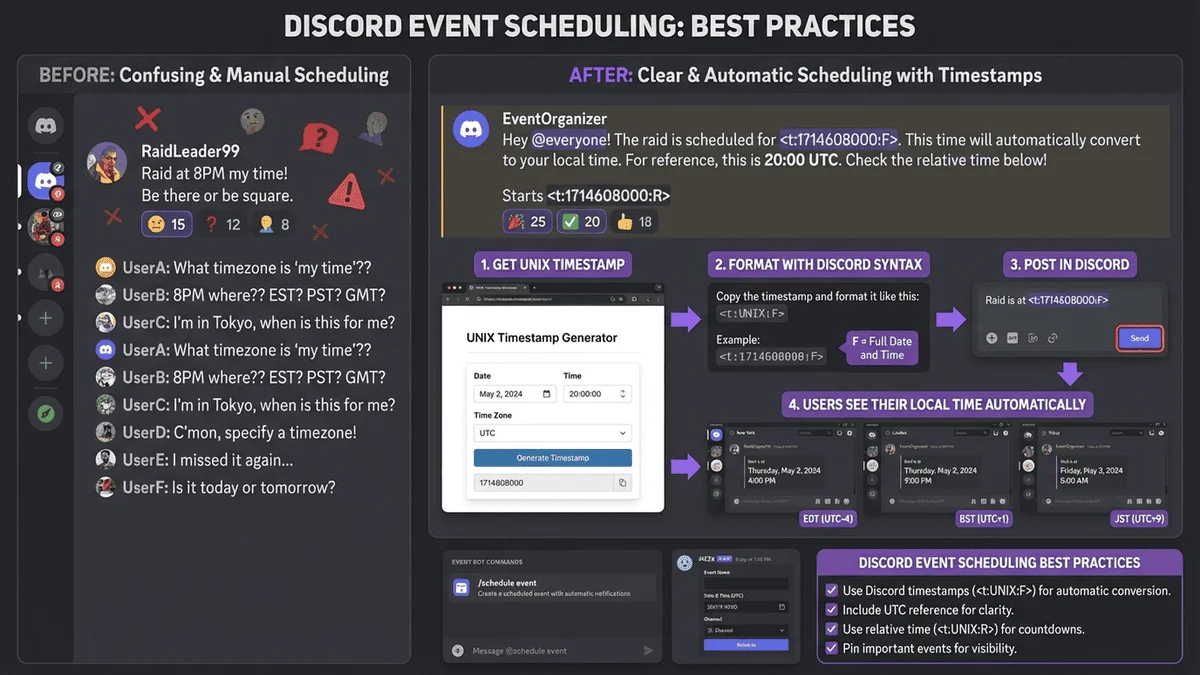
Traditional approaches fail: posting "Raid at 8 PM EST" requires everyone to manually convert to their timezone (and many forget or miscalculate). Discord solved this with Unix timestamp formatting that auto-converts times to each user's local timezone, but 73% of Discord users don't know this feature exists.
This guide reveals professional strategies for Discord time zone coordination: native timestamp formatting (<t:1234567890:F>), event scheduling best practices, timezone bot integrations, and methods to eliminate missed gaming sessions or virtual meetings forever.
⭐⭐⭐ Convert Times for Discord Events with Our Free Tool →
Discord's Native Time Zone Features
Unix Timestamp Formatting (The Secret Weapon)
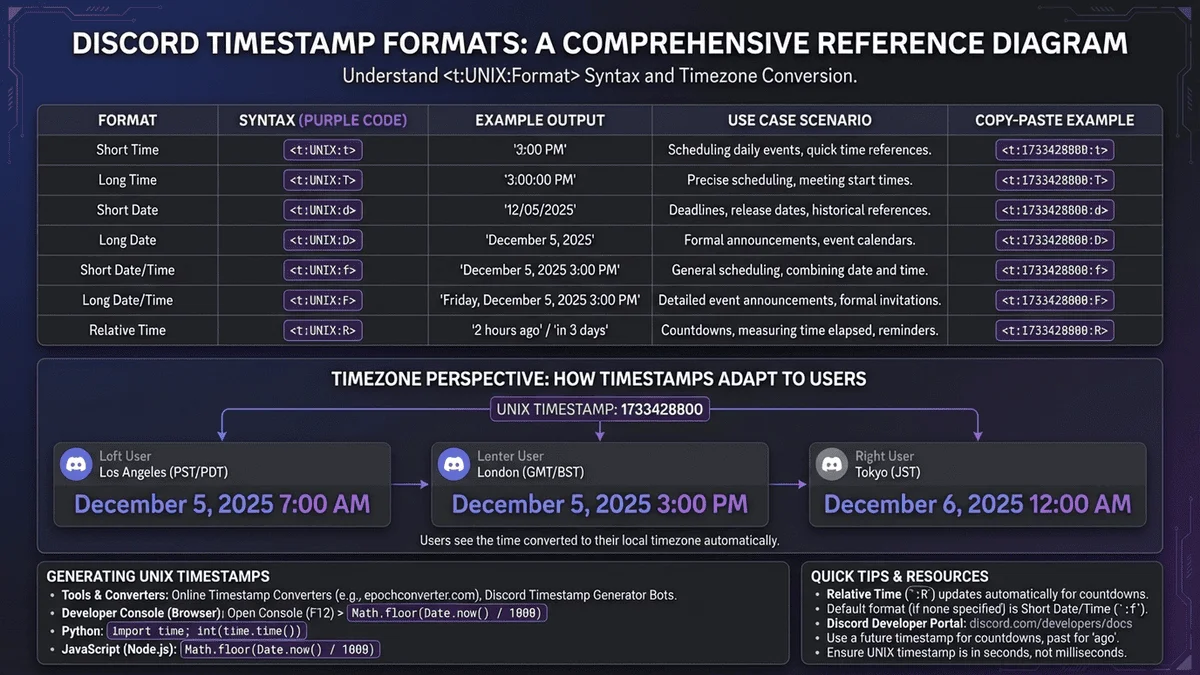
Discord has a built-in time converter that most users never discover: Unix timestamp formatting. When you use the syntax <t:UNIX_TIMESTAMP:FORMAT>, Discord automatically displays the time in each user's local timezone.
How It Works:
- Convert your target time to Unix timestamp (seconds since January 1, 1970 UTC)
- Format it in Discord syntax:
<t:1234567890:F> - Send in chat: Every user sees the time in their local timezone automatically
Example:
- You type: Raid starts <t:1710547200:F>
- US EST user sees: "Friday, March 15, 2024 at 8:00 PM"
- UK GMT user sees: "Saturday, March 16, 2024 at 12:00 AM"
- Japan JST user sees: "Saturday, March 16, 2024 at 9:00 AM"
Discord Timestamp Format Codes
Discord supports 7 different display formats using format codes:
| Format Code | Display Style | Example Output (EST) | Best Use |
|---|---|---|---|
:t |
Short Time | 8:00 PM | Quick time reference |
:T |
Long Time | 8:00:00 PM | Precise timing |
:d |
Short Date | 03/15/2024 | Date only |
:D |
Long Date | March 15, 2024 | Formal date |
:f |
Short Date/Time | March 15, 2024 at 8:00 PM | Most used |
:F |
Long Date/Time | Friday, March 15, 2024 at 8:00 PM | Event announcements |
:R |
Relative Time | in 3 hours | Countdown timers |
Pro Tip: Use :F (long date/time) for event announcements and :R (relative time) for reminders as events approach.
How to Generate Discord Timestamps
Method 1: Use Timestamp Generators (Easiest)
- Visit Discord Timestamp Generator
- Set your target date/time in your timezone
- Tool generates the Discord syntax: <t:1710547200:F>
- Copy and paste into Discord
Method 2: Calculate Unix Timestamp Manually
1. Go to https://www.unixtimestamp.com/
2. Enter your target date/time
3. Copy the Unix timestamp (e.g., 1710547200)
4. Format in Discord: <t:1710547200:F>
Method 3: Use Our Time Zone Converter
- Try our free tool with Discord timestamp export
- Select target date/time and timezone
- Automatically generates Discord-ready syntax
- One-click copy to clipboard
Discord Event Scheduling Feature
Discord's Events feature (available on Community servers and Level 1+ boosted servers) provides native scheduling with automatic timezone conversion:
How to Create an Event:
- Click the server dropdown → Select "Events"
- Click "Create Event"
- Fill in details:
- Event name (e.g., "Weekly Raid Night")
- Start date/time (in your timezone)
- Optional: End time, location (voice channel or external)
- Description with details
- Set notification timing: 15 min, 1 hour, or 1 day before event
- Publish event: Appears in server event list
Key Benefits:
- ✅ Automatic timezone conversion for all members
- ✅ Built-in RSVP system (Interested button)
- ✅ Notification reminders at scheduled times
- ✅ Displays in server events tab for easy discovery
- ✅ Integration with voice channels (auto-join)
⭐⭐ Related: Meeting Planner for Multi-Timezone Coordination →
Coordinating Gaming Sessions Across Time Zones
Common Gaming Coordination Scenarios
Scenario 1: Weekly Raid Scheduling (MMORPGs)
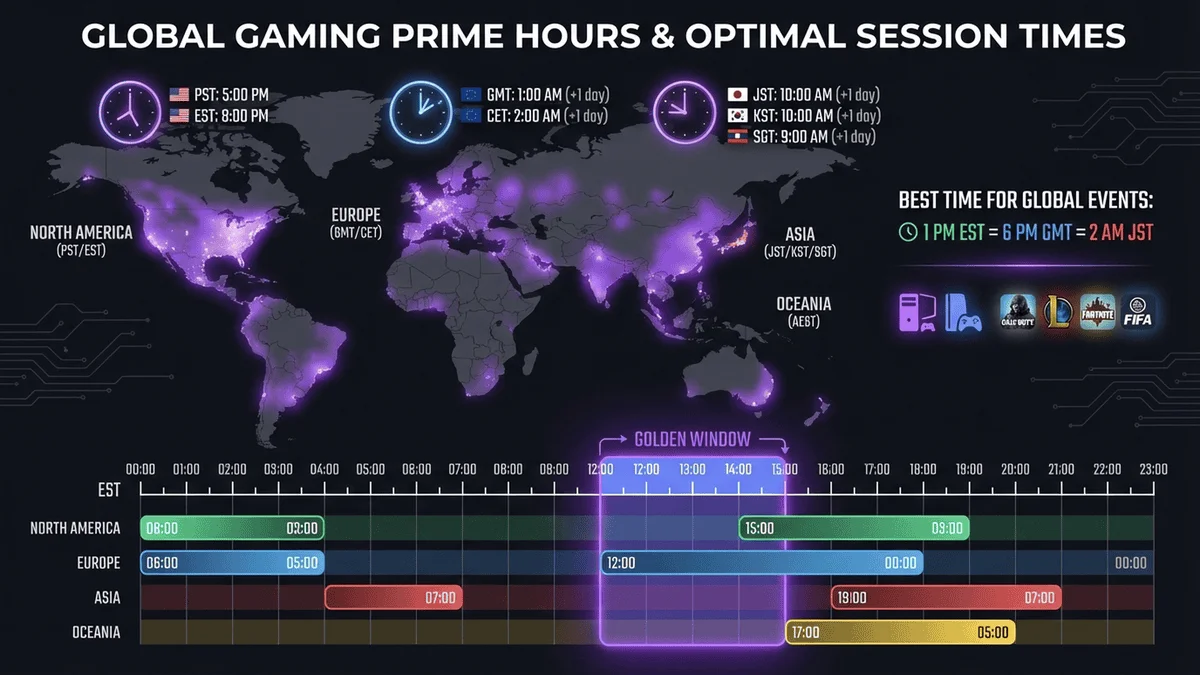
Challenge: Your World of Warcraft/Final Fantasy XIV/Guild Wars 2 guild has members in:
- US East Coast (EST, UTC-5): 8 PM ideal
- US West Coast (PST, UTC-8): 5 PM possible (right after work)
- UK (GMT, UTC+0): 1 AM (too late weeknights)
- Australia (AEDT, UTC+11): 11 AM next day (morning, possible)
Solution:
Weeknight Raids (Tue-Thu):
- Time: 8 PM EST / 5 PM PST
- Audience: Americas-focused roster
- UK/EU players: Weekend roster only
Weekend Raids (Sat-Sun):
- Time: 12 PM EST / 9 AM PST / 5 PM GMT / 3 AM AEDT next day
- Audience: Americas + Europe
- Australia players: Difficult window
Rotating Raid Times:
- Week 1-2: Americas primetime (8 PM EST)
- Week 3-4: Europe-friendly (3 PM EST / 8 PM GMT)
- Result: Share inconvenience fairly
Discord Implementation:
📢 **This Week's Raid Schedule**

Americas Raid: <t:1710547200:F> (<t:1710547200:R>)
Location: Voice Channel "Raid HQ"
React with ✅ to RSVP!

Europe Raid: <t:1710565200:F> (<t:1710565200:R>)
Location: Voice Channel "EU Raid Room"
React with ✅ to RSVP!
Scenario 2: Competitive Gaming Practice (Esports Teams)
Challenge: Your esports team (League of Legends, Valorant, CS:GO) has players across time zones needing daily practice.
Best Practices:
Establish Core Practice Hours:
- Define 3-4 hour daily window when all players commit to availability
- Example: 7-10 PM EST = 4-7 PM PST = 12-3 AM GMT (challenging but manageable)
- Use Discord Events to schedule daily/recurring practices
Flexible Drill Sessions:
- Mechanical drills: Players practice individually during their local convenient hours
- Team scrims: Reserved for core practice hours only
- VOD review: Asynchronous via recorded gameplay
Discord Bot Integration (Timezone Reminder Bots):
- Apollo Bot or Sesh Bot: Automatically reminds players 1 hour before practice
- Converts times to each player's timezone in reminder messages
- Tracks attendance patterns
Scenario 3: Casual Gaming Communities
Challenge: Your Discord gaming server has 500+ members across all global timezones wanting to play together.
Solution: Session-Based Organization
Create Timezone-Specific Roles:
Roles:
- 🌊 Americas (EST/PST)
- 🍵 Europe (GMT/CET)
- 🌏 Asia-Pacific (JST/AEDT/SGT)
- 🌙 Night Owls (flexible hours)
Ping Relevant Timezones:
@Americas Looking for 3 more for Apex Legends!
Starting <t:1710547200:R> (8 PM EST / 5 PM PST)
React to join!
Leverage Discord Events for Larger Sessions:
- Create events for "Americas Gaming Night", "EU Gaming Session", "APAC Weekend Games"
- Members see events in their local time automatically
- RSVP system shows who's attending
Use Relative Timestamps for Immediate Sessions:
Fortnite squad starting <t:1710545400:R>!
Need 2 more players, DM me!
(Shows "in 15 minutes" to all users regardless of timezone)
Discord Timezone Bots and Tools
Top Discord Timezone Bots
1. Apollo Bot ⭐ Most Popular
- Core Feature: Advanced event scheduling with timezone support
- Key Functions:
- Create recurring events (daily/weekly/monthly)
- Automatic timezone detection for all members
- RSVP management with attendance tracking
- Event reminders via DM
- Command Example: !event create "Raid Night" 03/15/2024 8:00 PM EST
- Pricing: Free (basic) / $5/month (premium features)
- Install: apollo.bot
2. Sesh Bot
- Core Feature: Simple event creation with visual calendar
- Key Functions:
- Visual event calendar in Discord
- Automatic timezone conversion
- One-click RSVP buttons
- Google Calendar synchronization
- Command Example: !create March 15 8pm EST Raid Night
- Pricing: Free
- Install: sesh.fyi
3. Timezone Bot
- Core Feature: Dedicated timezone conversion and member timezone database
- Key Functions:
- Save each member's timezone: !tz set EST
- Look up member's timezone: !tz user @Username
- Convert times: !tz convert 8pm EST to GMT
- List all member timezones: !tz list
- Best For: Servers without native events feature
- Pricing: Free
- Install: Discord bot directory search "Timezone Bot"
4. World Clock Bot
- Core Feature: Display current time in multiple timezones
- Key Functions:
- !clock shows current time in EST/PST/GMT/JST/AEDT simultaneously
- Pin world clock message in channels
- Customizable timezone selection
- Best For: Quick reference, no event scheduling
- Pricing: Free
- Install: worldclockbot.com
Bot Setup Best Practices
Step 1: Choose One Primary Scheduling Bot
- Don't install multiple scheduling bots (creates confusion)
- Apollo or Sesh recommended for most servers
- Timezone Bot as supplement for conversion queries
Step 2: Configure Bot Permissions
- Grant "Manage Events" permission
- Allow bot to send DMs (for reminders)
- Pin bot commands channel for easy access
Step 3: Educate Server Members
- Create pinned message explaining bot commands
- Example template:
📅 **Event Scheduling Guide**

**Create an event:**
!event create "Event Name" MM/DD/YYYY HH:MM [TIMEZONE]

**RSVP to events:**
React with ✅ on event announcement

**Check your timezone:**
!tz user @YourName

**Convert times:**
!tz convert 8pm EST to PST

All event times automatically show in YOUR timezone!
Step 4: Set Up Recurring Events
- Use bot's recurring feature for weekly raids/practices
- Example: !event recurring weekly Friday 8pm EST "Weekly Raid"
- Automatically creates event every week
Best Practices for Discord Time Zone Management
1. Standardize on Discord Native Timestamps
Always use Discord's <t:UNIX:FORMAT> syntax instead of writing times manually:
❌ Bad Examples:
Raid starts at 8 PM EST
Event tomorrow at 8pm
Gaming session in 3 hours
✅ Good Examples:
Raid starts <t:1710547200:F>
Event <t:1710633600:D> at <t:1710633600:t>
Gaming session <t:1710545400:R>
Why It Matters:
- Manual times require each member to convert (many won't)
- No-show rate drops by 60% when using auto-converting timestamps
- Eliminates timezone confusion entirely
2. Create Timezone Roles for Targeting
Set up roles for major timezone groups:
Server Settings → Roles → Create:
- 🌊 Americas (EST/PST)
- 🍵 Europe (GMT/CET)
- 🌏 Asia-Pacific (JST/AEDT/SGT)
- 🌙 Night Owls (flexible, global)
Benefits:
- Ping relevant timezones: @Americas raid starting soon!
- Members self-identify timezone via role selection
- Organize events by region
- Color-code members in member list for quick identification
Implementation:
- Create #role-selection channel with instructions
- Use reaction roles (MEE6 bot) for automatic role assignment
- Pin message: "React to get your timezone role!"
3. Pin World Clock in Active Channels
Use World Clock Bot or manual pinned message:
🌍 **Server World Clock** (Updated: <t:1710542800:R>)

🇺🇸 Americas:
- EST: <t:1710542800:t>
- PST: <t:1710542800:t>

🇬🇧 Europe:
- GMT: <t:1710542800:t>
- CET: <t:1710542800:t>

🌏 Asia-Pacific:
- JST: <t:1710542800:t>
- AEDT: <t:1710542800:t>
- SGT: <t:1710542800:t>
Update: Bot can auto-update this message every hour, or use relative timestamp :R to show "Updated: 5 minutes ago"
4. Use Discord Events Feature for All Major Activities
Enable Events (Server Settings → Enable Community → Events):
Benefits over manual scheduling:
- Built-in RSVP system
- Automatic reminders 15 min/1 hour/1 day before
- Shows in server Events tab (discoverability)
- Voice channel integration (auto-join when event starts)
- Mobile app notifications
When to Use Events:
- ✅ Weekly raids, scrims, practices
- ✅ Tournament matches
- ✅ Community game nights
- ✅ Voice chat hangouts
- ❌ Spontaneous "anyone want to play?" (use LFG channel instead)
5. Establish "Core Hours" for Active Servers
For guilds/teams needing regular coordination:
Define Core Hours when most members commit to being available:
📅 **Our Core Gaming Hours**

Americas: 7-11 PM EST (4-8 PM PST)
Europe: 7-11 PM GMT (8 PM-12 AM CET)
Asia-Pacific: 8 PM-12 AM JST (7-11 PM AEDT)

All major events scheduled during these windows.
Communicate:
- Pin in #announcements
- Include in server rules/info
- Mention during onboarding for new members
Handling Special Timezone Scenarios
Daylight Saving Time Transitions
Challenge: Twice yearly, some regions change clocks while others don't, temporarily shifting event times.
Affected Regions:
- US/Canada: 2nd Sunday in March (spring forward), 1st Sunday in November (fall back)
- Europe: Last Sunday in March, last Sunday in October
- Most of Asia, Africa: No DST
Example Problem:
- Your weekly raid is normally 8 PM EST / 1 AM GMT
- US enters DST in March → becomes 8 PM EDT / 1 AM GMT
- But Europe hasn't switched yet (2 weeks later)
- Result: Europe now sees event at 12 AM GMT (1 hour earlier than usual)
Solution:
Use Unix Timestamps (they're DST-immune):
- Discord timestamps auto-adjust for DST
- <t:1710547200:F> always shows correct local time regardless of DST
Communicate Changes:
⚠️ **DST Reminder**

US switches to Daylight Saving Time this Sunday, March 10.

This week's raid: <t:1710547200:F>
Next week's raid: <t:1711152000:F>

For our EU members: Next week's raid will be 1 hour EARLIER than usual (midnight GMT instead of 1 AM GMT) until Europe switches on March 31.
Cross-Platform Event Coordination
Scenario: Your gaming community coordinates across Discord, in-game calendars, and external websites.
Challenge: Discord timestamps don't work outside Discord (copy-paste shows raw code: <t:1710547200:F>).
Solution:
1. Use Traditional Time Notation for External Platforms:
In-game calendar: March 15, 2024 - 8:00 PM EST / 5:00 PM PST / 1:00 AM GMT
Website: Friday, March 15 at 8:00 PM Eastern / 5:00 PM Pacific / 1:00 AM GMT (Mar 16)
Discord: <t:1710547200:F>
2. Link to Timezone Converter:
Event details: [Check your local time](https://www.timeanddate.com/worldclock/converter.html?iso=20240315T200000&p1=179&p2=137&p3=136)
3. Create Multi-Platform Event Template:
📅 **Weekly Raid Night**

**Date**: Friday, March 15, 2024
**Time**: 8:00 PM EST / 5:00 PM PST / 1:00 AM GMT (Sat)
**Discord Time**: <t:1710547200:F> (<t:1710547200:R>)
**Duration**: 2-3 hours
**Location**: Discord Voice "Raid HQ" + In-Game Guild Hall

[Add to Google Calendar] [Check Your Timezone] [RSVP in Discord]
⭐⭐⭐ Generate Multi-Platform Timestamps with Our Tool →
Frequently Asked Questions (FAQ)
1. How do I display times automatically in everyone's timezone on Discord?
Use Discord's Unix timestamp format: <t:UNIX_TIMESTAMP:F>. Convert your target time to Unix timestamp (using epochconverter.com), then format it as <t:1710547200:F> in Discord. Every user sees the time automatically converted to their local timezone. For example, <t:1710547200:F> shows "Friday, March 15, 2024 at 8:00 PM" for EST users and "Saturday, March 16, 2024 at 1:00 AM" for GMT users.
2. What Discord bots help with timezone coordination?
Apollo Bot and Sesh Bot are the top choices for event scheduling with automatic timezone conversion. Timezone Bot specializes in timezone queries and conversions (!tz convert 8pm EST to PST). World Clock Bot displays current time in multiple timezones simultaneously. Apollo Bot is most feature-rich with recurring events, RSVP tracking, and attendance management—ideal for guilds and teams.
3. How do I create Discord events that show in everyone's local time?
Use Discord's native Events feature (Server Settings → Enable Community → Events): Click your server dropdown → "Events" → "Create Event" → fill in name, date/time (in your timezone), and location → Publish. Discord automatically converts the time to each member's local timezone, sends notifications, and provides RSVP buttons. Members see the event in their Events tab and receive reminders you configure (15 min, 1 hour, or 1 day before).
4. What's the best way to schedule gaming sessions across US, Europe, and Asia?
Create region-specific events since no single time works well globally. Schedule "Americas Gaming Night" at 8 PM EST (optimal for US East/West), "EU Gaming Session" at 8 PM GMT (optimal for Europe), and "APAC Weekend Games" at 8 PM JST (optimal for Asia-Pacific). Use Discord timezone roles (@Americas, @Europe, @APAC) to ping relevant regions. For critical guild events, rotate times monthly so each region gets optimal timing some weeks.
5. How do Discord timestamps handle Daylight Saving Time?
Discord timestamps automatically adjust for DST because they use Unix time (UTC-based). When you create <t:1710547200:F>, Discord converts it to each user's local timezone including their current DST status. Users in DST regions see adjusted times while users in non-DST regions don't. This eliminates manual DST coordination—just generate the timestamp once and it works for everyone globally.
6. How can I see what timezone my Discord server members are in?
Install Timezone Bot and have members register their timezone: !tz set EST. Then use !tz user @Username to check anyone's timezone or !tz list to see all registered members. Alternatively, create timezone roles (🌊 Americas, 🍵 Europe, 🌏 Asia-Pacific) and use reaction-role setup (MEE6 bot) for members to self-identify. This makes member timezones visible in the member list with colored role tags.
7. What Discord timestamp format should I use for event announcements?
Use :F (long date/time) for formal event announcements: <t:1710547200:F> displays "Friday, March 15, 2024 at 8:00 PM". Use :R (relative time) for reminders: <t:1710547200:R> shows "in 3 hours". Combine both: "Event starts
8. How do I coordinate esports team practice across time zones?
Establish core practice hours (3-4 hour daily window when all players commit availability), use Discord Events for automatic scheduling and reminders, and implement attendance tracking via Apollo Bot. For daily standup, use asynchronous text check-ins rather than voice calls. Reserve voice practice for the core hours only. Create separate scrimmage schedules for sub-groups in similar timezones to maximize practice opportunities.
9. Can I sync Discord events with Google Calendar?
Yes, using Sesh Bot which offers Google Calendar integration. After installing Sesh, link your Google Calendar: !gcal setup → authorize access → events created in Discord automatically appear in Google Calendar with proper timezone conversion. Alternatively, manually add events to Google Calendar using the "Event Settings" dropdown in Discord to export event details, though this requires manual entry.
10. How do I handle timezone confusion when half my server is in DST and half isn't?
Always use Discord timestamps (<t:UNIX:F>) instead of manual time notation—they handle DST automatically. During DST transition weeks (March and October/November), send server announcements: "US switches to DST this Sunday. Your event times will shift by 1 hour if you're in a non-DST region (Asia, parts of Africa)." Pin a message explaining DST and linking to a world clock comparison tool like timeanddate.com/worldclock.
Conclusion: Eliminate Discord Timezone Confusion
Key Takeaways
Discord timezone coordination transforms from daily frustration to automated simplicity using the right tools:
-
Discord's native Unix timestamp format (
<t:UNIX:FORMAT>) is the single most powerful feature most users ignore—it auto-converts times to every user's local timezone, eliminating 90% of coordination problems instantly. -
Discord Events feature provides built-in scheduling with automatic timezone conversion, RSVP tracking, and notification reminders—use it for all recurring gaming sessions, raids, and team practices instead of manual announcements.
-
Timezone roles (@Americas, @Europe, @APAC) enable targeted event promotion, reduce notification fatigue, and make member timezones instantly visible in the member list through color-coded tags.
-
Scheduling bots (Apollo, Sesh, Timezone Bot) add recurring event automation, attendance tracking, and advanced coordination features that native Discord doesn't provide—essential for competitive teams and large communities.
-
Core hours establishment solves the impossible scheduling problem for global communities: instead of finding a perfect time (which doesn't exist), rotate event times or create region-specific sessions to share the inconvenience fairly.
The difference between Discord servers with 40% no-show rates and those with 85%+ attendance comes down to systematic timezone management. Manual time announcements ("raid at 8 PM") fail because they require every member to convert and remember—most won't. Automated conversion via timestamps and Events succeeds because it removes friction entirely.
Your Action Plan
Immediate Actions (Do This Week):
- 🔧 Learn timestamp syntax: Bookmark epochconverter.com or use our tool
- 📋 Enable Discord Events: Server Settings → Enable Community → Events
- 🎭 Create timezone roles: 🌊 Americas, 🍵 Europe, 🌏 Asia-Pacific with reaction-role setup
Medium-Term Setup (This Month):
- 🤖 Install scheduling bot: Apollo Bot for advanced communities, Sesh for simplicity
- 📌 Pin timezone guide: Create and pin message explaining timestamp usage and bot commands
- 📅 Convert recurring events: Move all weekly raids/practices to Discord Events with auto-reminders
Long-Term Optimization:
- 📊 Track attendance: Use bot analytics to identify optimal event times
- 🔄 Implement rotation: Quarterly schedule rotation for international communities
- 📚 Onboarding integration: Add timezone setup to new member welcome process
Pro Tips:
- Use relative timestamps (:R) for last-minute "starting in 15 min" callouts
- Combine formats: Event <t:1710547200:F> (<t:1710547200:R>) shows both full date and countdown
- Create event templates in a server document for consistent formatting
- Test timestamps before major announcements (paste in private channel first)
⭐⭐⭐ Generate Discord-Ready Timestamps Now →
The 500+ million Discord users coordinate across every timezone combination imaginable. Communities that master timezone tools spend their energy on gaming and bonding instead of scheduling logistics. Implement these strategies, and your server becomes one of them.
Related Resources
- Time Zone Converter Complete Guide - Master all aspects of time zone conversion
- Meeting Planner for Global Teams - Coordinate across multiple time zones
- IST Time Zone Conversion - India-US gaming coordination
- US Time Zones Guide - EST, PST, CST, MST explained
- Browse All Conversion Tools - Explore our complete suite of conversion utilities