會議規劃時區指南
Meeting Planner Time Zone Converter: Find Perfect Meeting Times Across Multiple Zones (2025)
← Back to Time Zone Converter Complete Guide
Introduction: Solving the Global Meeting Scheduling Challenge
Trying to schedule a meeting with team members in New York, London, Mumbai, and Tokyo? You're facing one of remote work's biggest headaches—73% of global teams report timezone coordination as their top scheduling challenge. When someone's 9 AM is someone else's midnight, finding a meeting time that doesn't sacrifice anyone's sleep becomes a complex puzzle.
Traditional back-and-forth email threads ("What time works for everyone?") waste an average of 18 minutes per meeting just on scheduling. Multiply that across dozens of weekly meetings, and your team loses entire workdays to timezone math alone.
Meeting planner time zone converters solve this by instantly showing overlapping business hours across multiple locations, suggesting optimal times based on work patterns, and eliminating the "Is 3 PM EST too early for PST?" guesswork. This guide reveals professional strategies for scheduling global meetings efficiently, ensuring no team member consistently gets stuck with 2 AM calls.
⭐⭐⭐ Try Our Free Meeting Planner Time Zone Tool →
What is a Meeting Planner Time Zone Converter?
Understanding the Tool's Purpose
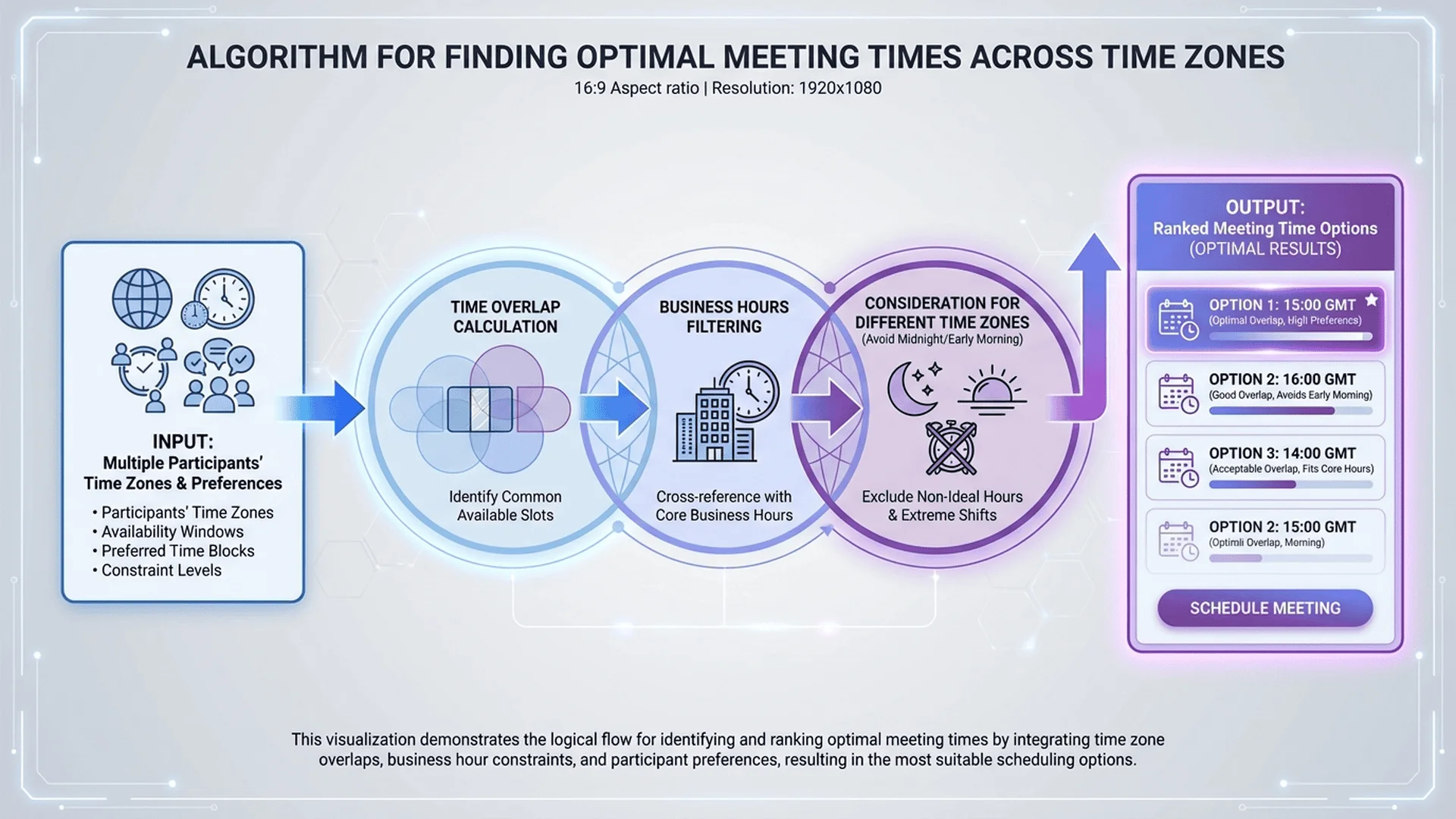
A meeting planner time zone converter is a specialized scheduling tool that analyzes multiple timezones simultaneously to identify mutually convenient meeting windows. Unlike simple time converters that only translate one timezone to another, meeting planners:
Core Functions:
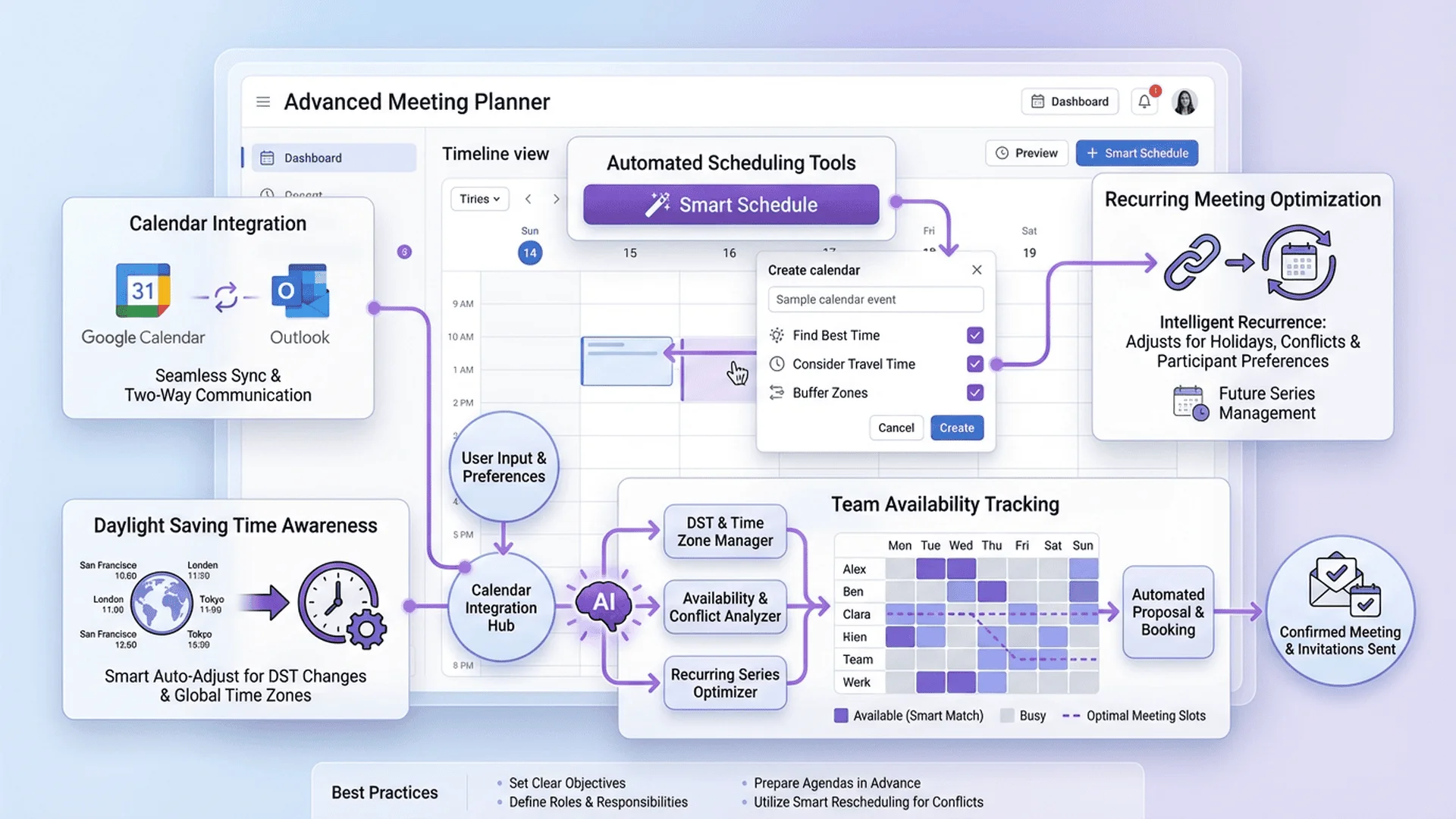
- 🌍 Multi-zone visualization: Display 3-10+ timezones side-by-side
- ⏰ Business hours highlighting: Show working hours (typically 9 AM - 5 PM) for each location
- ✅ Optimal time suggestions: Recommend times when most/all participants are available
- 🚫 Conflict detection: Flag times that fall outside business hours or on weekends
- 📅 Calendar integration: Export directly to Google Calendar, Outlook, or Apple Calendar
- 🔄 DST awareness: Automatically adjust for Daylight Saving Time changes
How It Differs from Standard Time Converters
| Feature | Standard Converter | Meeting Planner |
|---|---|---|
| Timezones displayed | 2 (usually) | 3-10+ simultaneously |
| Primary use case | "What time is it there?" | "When can we all meet?" |
| Business hours aware | No | Yes (highlights 9-5) |
| Optimal time suggestions | No | Yes (automated) |
| Visual overlap indicators | No | Yes (color-coded) |
| Calendar export | Rarely | Usually included |
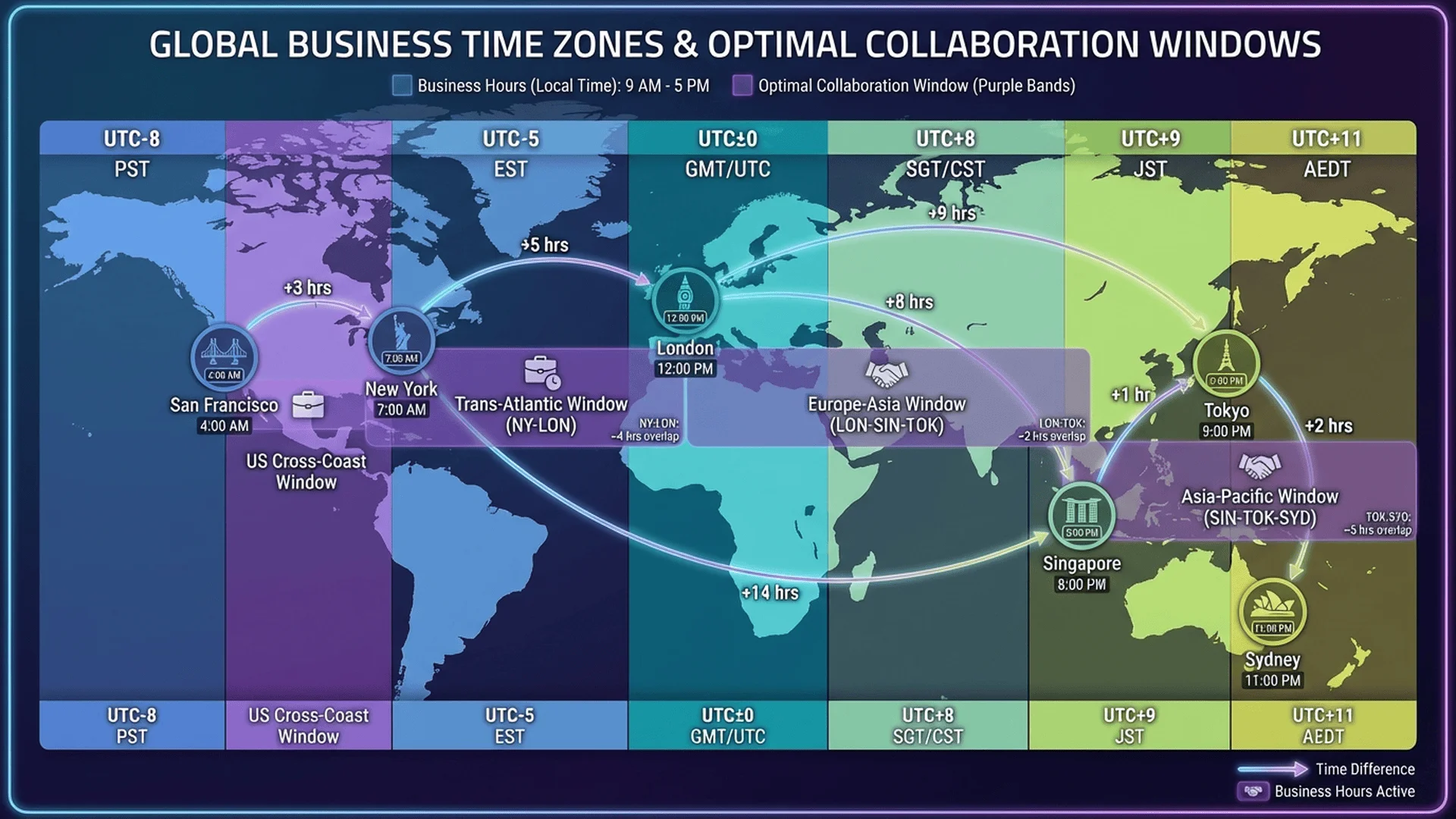
Example Scenario: You need to schedule a meeting with colleagues in:
- San Francisco (PST/PDT, UTC-8/-7)
- New York (EST/EDT, UTC-5/-4)
- London (GMT/BST, UTC+0/+1)
- Singapore (SGT, UTC+8)
A standard converter requires six separate conversions (each city pair). A meeting planner shows all four timezones at once and highlights that 4:00-6:00 PM London time works for everyone during reasonable hours.
⭐⭐ Related: Understanding UTC and Time Zone Basics →
How to Use a Meeting Planner Time Zone Converter
Step-by-Step Guide
Step 1: Add All Participant Timezones
- Enter each meeting attendee's location or timezone
- Common formats: "New York", "EST", "UTC-5", "America/New_York"
- Pro tip: Include abbreviated names (e.g., "John - NYC", "Sarah - London")
Step 2: Set Meeting Duration
- Specify how long the meeting will last (30 min, 1 hour, 2 hours, etc.)
- Longer meetings require more careful scheduling to avoid someone's late night
Step 3: Define Business Hours Constraints (Optional)
- Set acceptable meeting hours for each timezone
- Example: "London: 9 AM - 6 PM", "Tokyo: 8 AM - 7 PM"
- Account for early birds vs. night owls
Step 4: Review Suggested Times
- Tool displays optimal windows, usually ranked by:
- ⭐⭐⭐ Perfect: Within everyone's business hours
- ⭐⭐ Good: Minor compromise (e.g., 8 AM start for one person)
- ⭐ Acceptable: Requires sacrifice (early morning or late evening for someone)
Step 5: Check for DST Considerations
- Verify if any location is transitioning to/from Daylight Saving Time
- Meeting times can shift by 1 hour during DST change weeks
Step 6: Export to Calendar
- Generate calendar event with all timezones converted automatically
- Attendees receive invites showing meeting time in their local timezone
- Eliminates "Wait, is this 3 PM my time or your time?" confusion
Finding Optimal Meeting Times for Multiple Timezones
The 3-Timezone Challenge
Coordinating three timezones is manageable with the right approach:
Example: US East Coast + US West Coast + Europe
- Participants: New York (EST), San Francisco (PST), London (GMT)
- Time differences: 3 hours (NYC-SF), 5 hours (NYC-London), 8 hours (SF-London)
Optimal Windows:
| Time in London | Time in New York | Time in San Francisco | Quality |
|---|---|---|---|
| 3:00-5:00 PM GMT | 10:00 AM-12:00 PM EST | 7:00-9:00 AM PST | ⭐⭐⭐ Perfect |
| 2:00-3:00 PM GMT | 9:00-10:00 AM EST | 6:00-7:00 AM PST | ⭐⭐ Good (early PST) |
| 5:00-6:00 PM GMT | 12:00-1:00 PM EST | 9:00-10:00 AM PST | ⭐⭐ Good (late London) |
Best Choice: 4:00 PM London time = 11:00 AM New York = 8:00 AM San Francisco
- London team: Late afternoon (productive post-lunch hours)
- New York team: Mid-morning (peak productivity)
- San Francisco team: Early morning (requires discipline but manageable)
Rotation Strategy: Alternate meeting times monthly so one timezone doesn't always compromise:
- Week 1-2: 4:00 PM GMT (favors London/NYC)
- Week 3-4: 6:00 PM GMT (favors NYC/SF, late for London)
The 4+ Timezone Challenge
Adding four or more timezones (especially spanning Asia-Pacific to Americas) drastically reduces overlap:
Example: Global Team Across 4 Continents
- Participants: Los Angeles (PST), New York (EST), London (GMT), Mumbai (IST), Tokyo (JST)
- Total span: 17.5 hours (LA to Tokyo)
Challenge: No single time works well for everyone
Solution Strategies:
Strategy 1: Split Meetings
- Meeting A: Americas + Europe (LA, NYC, London) at 4 PM GMT
- Meeting B: Europe + Asia (London, Mumbai, Tokyo) at 9 AM GMT
- Key attendees: Join both if necessary; others attend one
Strategy 2: Rotating Sacrifice
- Week 1: Optimize for Americas/Europe (Tokyo joins at midnight)
- Week 2: Optimize for Europe/Asia (LA joins at 5 AM)
- Week 3: Mid-point compromise (everyone slightly uncomfortable)
- Week 4: Asynchronous update (no live meeting)
Strategy 3: Asynchronous Collaboration
- Record meetings for team members who can't attend
- Use Loom, Slack video, or async standups
- Reserve synchronous meetings for critical discussions only
- Maintain shared documents for async input
⭐⭐ Related: IST Time Zone Conversion for India-US Meetings →
Best Practices for International Meeting Scheduling
1. Always Include Timezone Abbreviations in Invites
Bad Example:
"Team meeting tomorrow at 3:00 PM"
Good Example:
"Team meeting tomorrow at 3:00 PM EST / 12:00 PM PST / 8:00 PM GMT"
Best Example:
"Team meeting tomorrow:
- 3:00 PM EST (New York)
- 12:00 PM PST (San Francisco)
- 8:00 PM GMT (London)
- 1:30 AM IST next day (Mumbai)"
Why it matters: Eliminates 95% of timezone confusion and clearly shows sacrifice required (Mumbai at 1:30 AM)
2. Use Calendar Tools That Auto-Convert Timezones
Modern calendar platforms automatically display meeting times in each recipient's local timezone:
Recommended Tools:
- ✅ Google Calendar: Auto-converts and shows recipient's local time
- ✅ Microsoft Outlook: Timezone-aware with "Time Zone" display option
- ✅ Apple Calendar: Supports timezone conversion for invites
- ✅ Calendly: Shows available times in visitor's timezone automatically
- ⚠️ Email text invites: Require manual timezone specification
Calendar Best Practice:
- Create one event in your timezone
- Calendar platform converts for all recipients
- Double-check by viewing event in each timezone before sending
3. Establish "Core Hours" for Global Teams
Core hours are designated times when all team members commit to being available, regardless of their local time:
Example: 8-10 AM EST Core Hours
- New York: 8:00-10:00 AM (normal work hours)
- San Francisco: 5:00-7:00 AM (early morning commitment)
- London: 1:00-3:00 PM (early afternoon)
- Mumbai: 6:30-8:30 PM (evening, after dinner)
Benefits:
- Predictable meeting windows
- No daily negotiation of times
- Team members plan personal schedules around core hours
- Reduces scheduling friction by 70%
Implementation:
- Survey team for preferred core hour windows
- Rotate core hours quarterly to share inconvenience
- Document core hours in team charter/handbook
- Respect core hours for urgent issues only
4. Respect Local Holidays and Cultural Considerations
Different countries observe different holidays, which can cause scheduling conflicts:
Major Holiday Conflicts:
- US Thanksgiving (4th Thursday in November): Americans unavailable; confusing for international teams
- Chinese New Year (Late January/February): 1-2 week holiday in China, Hong Kong, Singapore
- Diwali (October/November): Major Indian holiday, reduced availability
- Christmas period (Dec 24-Jan 1): Varies by country (US: 1-2 days; Europe: up to 2 weeks)
- Ramadan (Islamic calendar month): Adjusted work hours in Muslim-majority countries
Best Practices:
- Share team holiday calendar at start of each year
- Use Google Calendar's "Holidays in [Country]" subscription
- Ask team members to block personal holidays in shared calendar
- Avoid scheduling important meetings on major holidays (even if not your holiday)
5. Record All Cross-Timezone Meetings
Why recording matters:
- Team members who can't attend live can catch up asynchronously
- Reduces pressure to attend at 2 AM
- Creates searchable meeting archive
- Helps onboarding new team members
Recording Tools:
- 🎥 Zoom: Built-in cloud recording
- 🎥 Google Meet: Recording available with paid plans
- 🎥 Microsoft Teams: Native recording to OneDrive
- 🎥 Loom: Async video messaging alternative
Recording Best Practices:
- Always announce when recording starts (legal requirement in many regions)
- Store recordings in shared drive (Google Drive, Dropbox)
- Add meeting notes and key decisions in description
- Set retention policy (e.g., delete after 90 days to save space)
Common Meeting Planning Challenges and Solutions
Challenge 1: The "Someone Always Suffers" Problem
Scenario: Your team spans Los Angeles (PST), New York (EST), and Singapore (SGT). Any meeting time puts someone in early morning (<7 AM) or late evening (>9 PM).
Solutions:
Solution A: Rotating Sacrifice Schedule
- Week 1-2: 8 PM PST / 11 PM EST / 12 PM SGT next day (Asia-friendly)
- Week 3-4: 8 AM PST / 11 AM EST / 12 AM SGT (Americas-friendly)
- Month 2: Reverse the pattern
- Result: Everyone compromises equally over time
Solution B: Different Meeting Types
- All-hands meetings (1-2x per month): Everyone attends regardless of time
- Regional standups (daily): Americas team at 9 AM PST; Asia team at 9 AM SGT
- Project syncs (weekly): Only relevant team members, find optimal time for those specific people
- Result: Reduces number of difficult meetings
Solution C: Asynchronous Alternatives
- Replace some live meetings with:
- Recorded video updates (Loom, Slack video)
- Written status reports in shared docs
- Asynchronous brainstorming (Miro, FigJam)
- Email threads for non-urgent discussions
- Result: Fewer live meetings required
Challenge 2: Daylight Saving Time Transitions
Scenario: You have recurring weekly meetings. Twice a year (March and November), some locations shift clocks but others don't, causing 1-hour meeting time changes.
Problematic Locations:
- US and Canada: DST observed (except Arizona, Hawaii)
- Europe: DST observed (called "Summer Time")
- Asia (China, Japan, India): No DST
- Australia: DST observed (opposite schedule from Northern Hemisphere)
Example Problem:
- Before US DST (February): 10 AM EST = 8:30 PM IST = 12 AM JST next day
- After US DST starts (March): 10 AM EDT = 7:30 PM IST = 11 PM JST (1 hour earlier for Asia)
Solutions:
Solution A: Use UTC-Based Scheduling
- Schedule meetings based on UTC time, which never changes
- Example: "Weekly meeting at 15:00 UTC" automatically adjusts for all DST changes
- Calendar tools convert UTC to local time correctly
Solution B: Pre-DST Communication
- Send team reminder 1 week before DST transitions:
"Reminder: US switches to Daylight Saving Time this Sunday, March 10. Our 10 AM EST meeting will move to 10 AM EDT, which is 1 hour earlier for team members in India and Japan. New times: 7:30 PM IST / 11:00 PM JST."
Solution C: Reschedule During DST Transition Weeks
- Acknowledge the 3-week period when some regions have switched and others haven't
- Manually adjust meeting times during transition weeks
- Return to normal schedule once all DST changes complete
⭐⭐ Related: US Time Zones and Daylight Saving Time →
Challenge 3: Large Meeting Participant Lists
Scenario: You need to schedule a meeting with 15+ people across 5+ timezones for a 2-hour workshop.
Why it's difficult:
- More participants = more timezone constraints
- Longer meeting = requires larger windows of availability
- Finding 2-hour slot when 15 people are free is statistically challenging
Solutions:
Solution A: Meeting Polls
Use tools that collect availability and find overlap:
- Doodle: Classic meeting poll tool
- When2Meet: Visual grid showing overlapping availability
- Calendly: Team scheduling with group polls
- Microsoft FindTime: Built into Outlook
Process:
1. Propose 3-5 time options spanning different timezone preferences
2. Participants mark which times work for them
3. Choose time with maximum attendance
4. Record meeting for those who can't make it
Solution B: Break Into Smaller Groups
- Instead of one 15-person meeting across 5 timezones...
- Hold three 5-person meetings across 2-3 timezones each
- Consolidate outputs from each session
- Saves time and increases engagement (smaller meetings = more participation)
Solution C: Hybrid Synchronous-Asynchronous
- Live kickoff (30 min): Present context, assign breakout topics
- Async work (1 week): Small groups work in shared docs during their own hours
- Live wrap-up (30 min): Present findings, make decisions
Result: Only 1 hour of difficult timezone coordination instead of 2
Challenge 4: Last-Minute Urgent Meetings
Scenario: Production incident or urgent client issue requires immediate meeting across timezones, but it's 11 PM for some team members.
Protocol:
Step 1: Assess True Urgency
- Critical: System down, data breach, major client escalation → Call people
- High: Bug affecting users, deadline tomorrow → Consider if it can wait
- Medium: Important but not emergency → Schedule normally
Step 2: Use Escalation Matrix
Document who can be contacted outside business hours:
- Tier 1 (always available): On-call engineers, team leads
- Tier 2 (available for critical issues): Senior developers, product managers
- Tier 3 (urgent only): Executives, stakeholders
Step 3: Minimize Disruption
- Keep meeting short (15-30 min max)
- Send pre-read materials if possible (even 10 minutes helps)
- Record meeting for team members you don't wake up
- Follow up with written summary
Step 4: Post-Incident Review
- After resolving urgent situation, conduct blameless post-mortem
- Identify process improvements to reduce future off-hours meetings
- Consider expanding on-call coverage or hiring in different timezones
Meeting Planner Tool Comparison
Top Meeting Scheduler Tools for Cross-Timezone Teams
| Tool | Best For | Timezone Features | Price | Calendar Integration |
|---|---|---|---|---|
| World Time Buddy | Quick visual comparison | Visual overlap, business hours highlight | Free | No (view only) |
| Calendly | External scheduling | Auto-converts to visitor's timezone | Free-$16/mo | Google, Outlook, iCloud |
| Doodle | Group meeting polls | Timezone-aware polls | Free-$6.95/mo | Google, Outlook |
| Google Calendar | General use | Auto-conversion for invitees | Free | Native |
| Microsoft FindTime | Outlook users | Polls with timezone support | Included with M365 | Outlook native |
| When2Meet | Simple availability grids | Basic timezone support | Free | No |
| x.ai | AI scheduling assistant | Natural language, full timezone awareness | $8-$12/mo | All major calendars |
⭐⭐⭐ Try Our Free Meeting Planner Tool (No Signup Required) →
Key Features to Look For
Must-Have Features:
- ✅ Multi-timezone display (3+ zones simultaneously)
- ✅ Business hours awareness
- ✅ DST auto-adjustment
- ✅ Calendar integration (Google Calendar, Outlook, Apple)
Nice-to-Have Features:
- 🎯 Optimal time suggestions
- 🎯 Meeting polls for group scheduling
- 🎯 Recurring meeting templates
- 🎯 Timezone abbreviation support (EST, PST, GMT, etc.)
- 🎯 Mobile app for on-the-go scheduling
Advanced Features:
- 🚀 AI-powered scheduling recommendations
- 🚀 Team availability insights and analytics
- 🚀 Custom business hours per team member
- 🚀 Integration with Slack, Microsoft Teams
- 🚀 Automatic meeting recording setup
Frequently Asked Questions (FAQ)
1. What is the best meeting planner for multiple time zones?
The best tool depends on your needs: World Time Buddy excels for quick visual comparisons, Calendly is ideal for external scheduling with automatic timezone conversion, and Google Calendar provides solid built-in features for team coordination. For maximum flexibility, try our free meeting planner tool which combines multi-timezone visualization, business hours highlighting, and optimal time suggestions without requiring registration.
2. How do I find a meeting time that works for everyone across different time zones?
Use a meeting planner tool to visualize all participant timezones simultaneously, identify overlapping business hours (typically 9 AM - 5 PM in each location), and look for windows where most participants are available during reasonable hours. For teams spanning more than 12 hours (like LA to Tokyo), consider rotating meeting times or using asynchronous alternatives for some meetings.
3. What time zone should I use for international meetings?
Use the timezone where the meeting organizer is located, but always specify times in multiple timezones in your calendar invite (e.g., "3 PM EST / 12 PM PST / 8 PM GMT"). Alternatively, schedule using UTC time and let calendar tools auto-convert to each participant's local timezone, which eliminates Daylight Saving Time confusion.
4. How do I schedule meetings across US and Europe time zones?
The optimal window for US-Europe meetings is typically 2:00-5:00 PM GMT / 9:00 AM-12:00 PM EST / 6:00-9:00 AM PST. This allows European teams to meet in mid-to-late afternoon while US East Coast teams join mid-morning and West Coast teams join early morning. Rotate meeting times monthly to share the early morning burden for PST participants.
5. What's the best way to schedule meetings with India and the US?
India (IST) is 10.5 hours ahead of US Eastern Time (EST) during standard time and 9.5 hours ahead during daylight time. The best meeting window is typically 8:00-10:00 PM IST / 9:30-11:30 AM EST, allowing India teams to join in the evening and US teams to meet mid-morning. For US West Coast participants, this becomes 6:30-8:30 AM PST, requiring early morning commitment. Learn more about IST conversion →
6. How do I handle Daylight Saving Time changes in recurring meetings?
Use calendar tools that automatically adjust for DST changes by scheduling meetings based on clock time (e.g., "10 AM EST/EDT") rather than fixed UTC offsets. Send team reminders 1 week before DST transitions (second Sunday in March and first Sunday in November in the US) noting how meeting times will shift for participants in non-DST regions like India, China, and Japan.
7. What are "core hours" for global teams?
Core hours are designated time windows when all team members commit to being available regardless of their local time, typically 2-4 hours per day. For example, a team might establish "9-11 AM EST" as core hours, meaning London attends at 2-4 PM, India at 7:30-9:30 PM, and San Francisco at 6-8 AM. Core hours reduce daily scheduling negotiations and provide predictable collaboration windows.
8. Can I use Google Calendar to schedule across time zones?
Yes, Google Calendar automatically converts meeting times to each invitee's local timezone. When you create an event and add participants, they receive invitations showing the meeting time in their timezone. You can also view your calendar in different timezones by clicking the settings icon and enabling "Display secondary time zone" to see a second timezone alongside your primary one.
9. How do meeting planners handle half-hour offset time zones like IST?
Quality meeting planners (including ours) properly handle half-hour offsets like India Standard Time (UTC+5:30), Newfoundland Time (UTC-3:30), and several others. When comparing IST with EST, the tool correctly calculates the 10.5-hour difference (or 9.5 hours during US daylight time) rather than rounding to full hours, ensuring accurate meeting time suggestions.
10. What's the best practice for rotating meeting times fairly?
Implement a quarterly or monthly rotation where meeting times alternate to share the inconvenience: Month 1-2 might optimize for Americas/Europe (challenging for Asia), Month 3-4 optimizes for Europe/Asia (challenging for Americas). Track who attends outside their business hours and ensure the burden is distributed equally over time. Some teams use a "sacrifice score" to quantify and balance off-hours meeting attendance.
11. Should I schedule meetings based on UTC time?
Yes, for technical teams or organizations with complex DST situations. UTC never changes (no Daylight Saving Time), making it a stable reference point. Schedule recurring meetings as "15:00 UTC" and let calendar tools convert to local time, which automatically handles DST transitions. However, for business users unfamiliar with UTC, specifying times in major timezones (EST, PST, GMT, IST) may be clearer.
12. How do I schedule a meeting with participants in 5+ time zones?
For meetings spanning 5+ timezones (especially if including Asia-Pacific and Americas), consider: (A) Split into regional meetings rather than one global meeting; (B) Rotate sacrifice so the same region doesn't always compromise; (C) Use hybrid formats with a short live sync plus asynchronous collaboration; or **(D) Accept that some participants will join at sub-optimal times and record the meeting for those who can't attend live.
Conclusion: Master Global Meeting Scheduling
Key Takeaways
Effective cross-timezone meeting planning transforms from frustrating timezone math into systematic process using the right tools and strategies:
-
Use specialized meeting planner tools that visualize multiple timezones simultaneously and highlight overlapping business hours, eliminating manual conversion errors
-
Establish core hours (2-4 hour windows when all team members commit to availability) to reduce daily scheduling negotiations and create predictable collaboration patterns
-
Rotate inconvenience fairly by alternating meeting times so the same timezone doesn't consistently bear the burden of early morning or late evening meetings
-
Leverage asynchronous alternatives for routine updates, reserving difficult cross-timezone meetings for truly collaborative discussions that require real-time interaction
-
Always specify times in multiple timezones in calendar invites (e.g., "3 PM EST / 12 PM PST / 8 PM GMT") to eliminate the "Wait, is this my time or your time?" confusion
The 73% of teams struggling with timezone coordination share a common pattern: they're trying to solve a systematic problem with ad-hoc solutions. Meeting planner tools, documented core hours, and rotation policies convert scheduling from a daily pain point into a manageable routine.
Your Action Plan
Immediate Steps:
- 🔧 Choose a meeting planner tool and add it to your team's workflow this week
- 📅 Audit your recurring meetings to identify which could be asynchronous instead of live
- ✍️ Update calendar invite templates to always include times in multiple timezones
Long-term Strategies:
- 🤝 Survey your team about their preferred meeting time windows and pain points
- 📋 Document core hours policy in your team handbook or wiki
- 🔄 Implement rotation schedule to share off-hours meeting burden equally
- 📊 Track meeting attendance by timezone to ensure fairness over time
The difference between teams that thrive across timezones and those that struggle comes down to systems. One-off accommodations ("Can we move the meeting an hour earlier?") create confusion. Systematic approaches (core hours, rotation policies, recorded meetings) create predictability.
⭐⭐⭐ Start Planning Perfect Meetings Now with Our Free Tool →
When scheduling your next international meeting, remember: the goal isn't finding a perfect time (which often doesn't exist), but finding a fair approach that balances team needs while maximizing productivity and respecting work-life boundaries.
Related Resources
- Time Zone Converter Complete Guide - Master all aspects of time zone conversion
- IST Time Zone Conversion Guide - Optimize meetings between India and US teams
- US Time Zones Guide - Understanding EST, PST, CST, and MST
- UTC Time Zone Guide - The foundation of timezone calculations
- Browse All Conversion Tools - Explore our complete suite of conversion utilities