JSON美化器使用指南
JSON Beautifier Usage Guide | Master 5 Beautification Techniques in 3 Minutes!
Have you ever received a JSON compressed into a single line from an API, completely unreadable? Or opened an old project's config file to find everything squeezed together, unable to even locate commas? Don't worry—this is where JSON Beautifier shines! This article teaches you how to use JSON beautification tools in 3 minutes, from basic operations to advanced techniques, transforming your JSON from chaos to order and instantly boosting readability by 500%. Whether you're a frontend engineer, backend developer, or data analyst, these techniques can be immediately applied to your daily work!
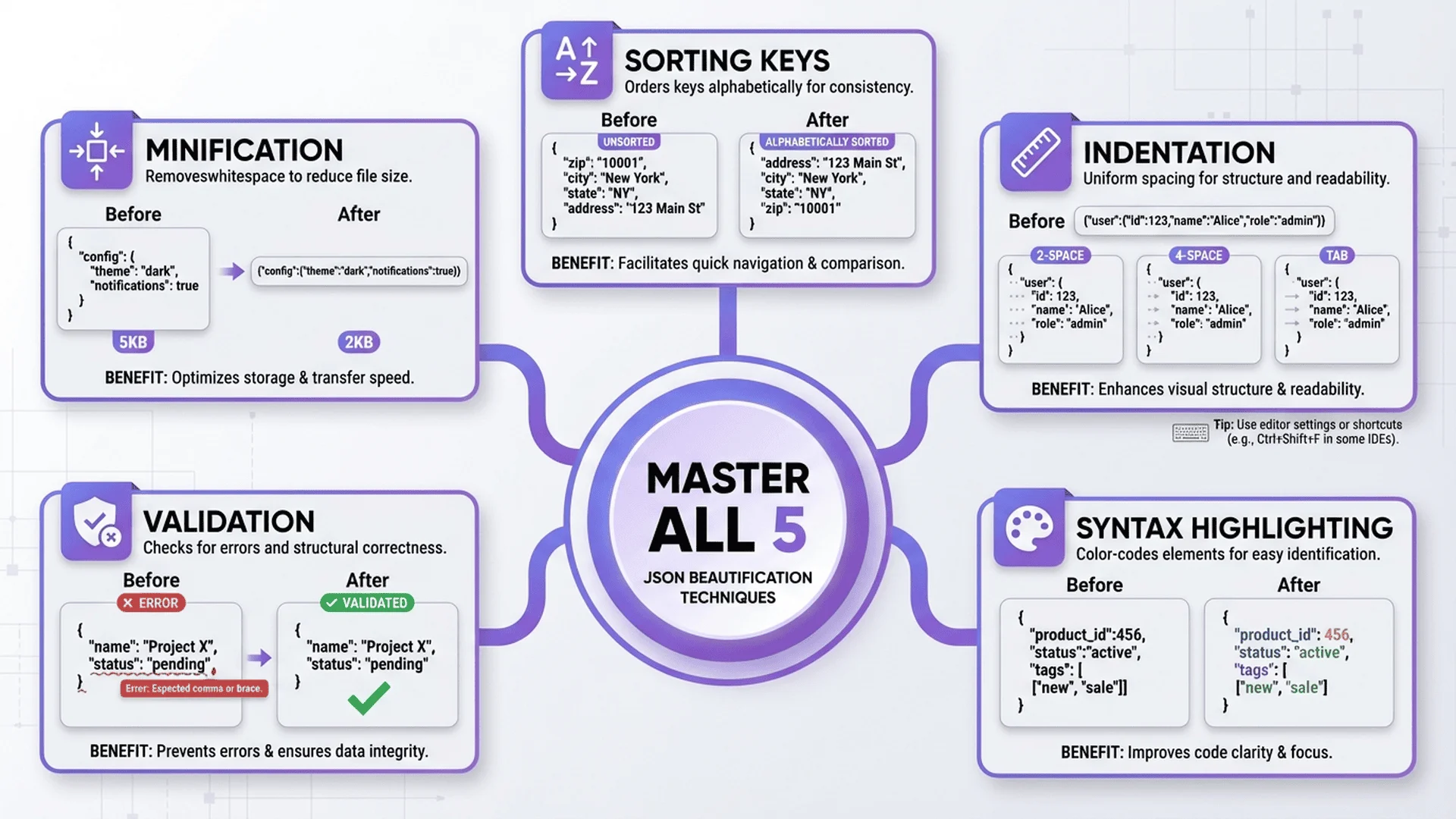
What Is a JSON Beautifier?
What JSON Beautifier Does
A JSON Beautifier (also called JSON Formatter or JSON Pretty Printer) is a tool that converts compressed or messy JSON into an easy-to-read formatted version.
Before (compressed):
{"name":"Alice","age":30,"address":{"city":"Taipei","zip":"100"},"hobbies":["reading","coding"]}
After (beautified):
{
  "name": "Alice",
  "age": 30,
  "address": {
    "city": "Taipei",
    "zip": "100"
  },
  "hobbies": [
    "reading",
    "coding"
  ]
}
See the difference? Beautified JSON instantly becomes clear and readable!
Why Beautify JSON?
Scenario 1: API Development and Testing
API responses are usually compressed single-line JSON (saves bandwidth), but developers need to understand the structure:
// API response (compressed)
{"status":"success","data":{"user":{"id":1,"name":"Alice"},"posts":[{"id":101,"title":"Hello"}]}}

// Instantly understand hierarchy after beautification
{
  "status": "success",
  "data": {
    "user": {
      "id": 1,
      "name": "Alice"
    },
    "posts": [
      {
        "id": 101,
        "title": "Hello"
      }
    ]
  }
}
Scenario 2: Config File Maintenance
Project config files (like package.json, tsconfig.json) need clear formatting for team collaboration.
Scenario 3: Data Analysis
When analyzing JSON-formatted logs or datasets, beautification helps quickly find needed fields.
Scenario 4: Debugging and Error Troubleshooting
Formatted JSON makes it easier to spot syntax errors (missing commas, mismatched brackets, etc.).
Beautify vs Minify
JSON processing has two opposite operations:
| Operation | Purpose | Example |
|---|---|---|
| Beautify | Improve readability, for development | Add indentation, line breaks, spaces |
| Minify (Compress) | Reduce file size, for production | Remove all whitespace |
Use Beautify during development, Minify for deployment.
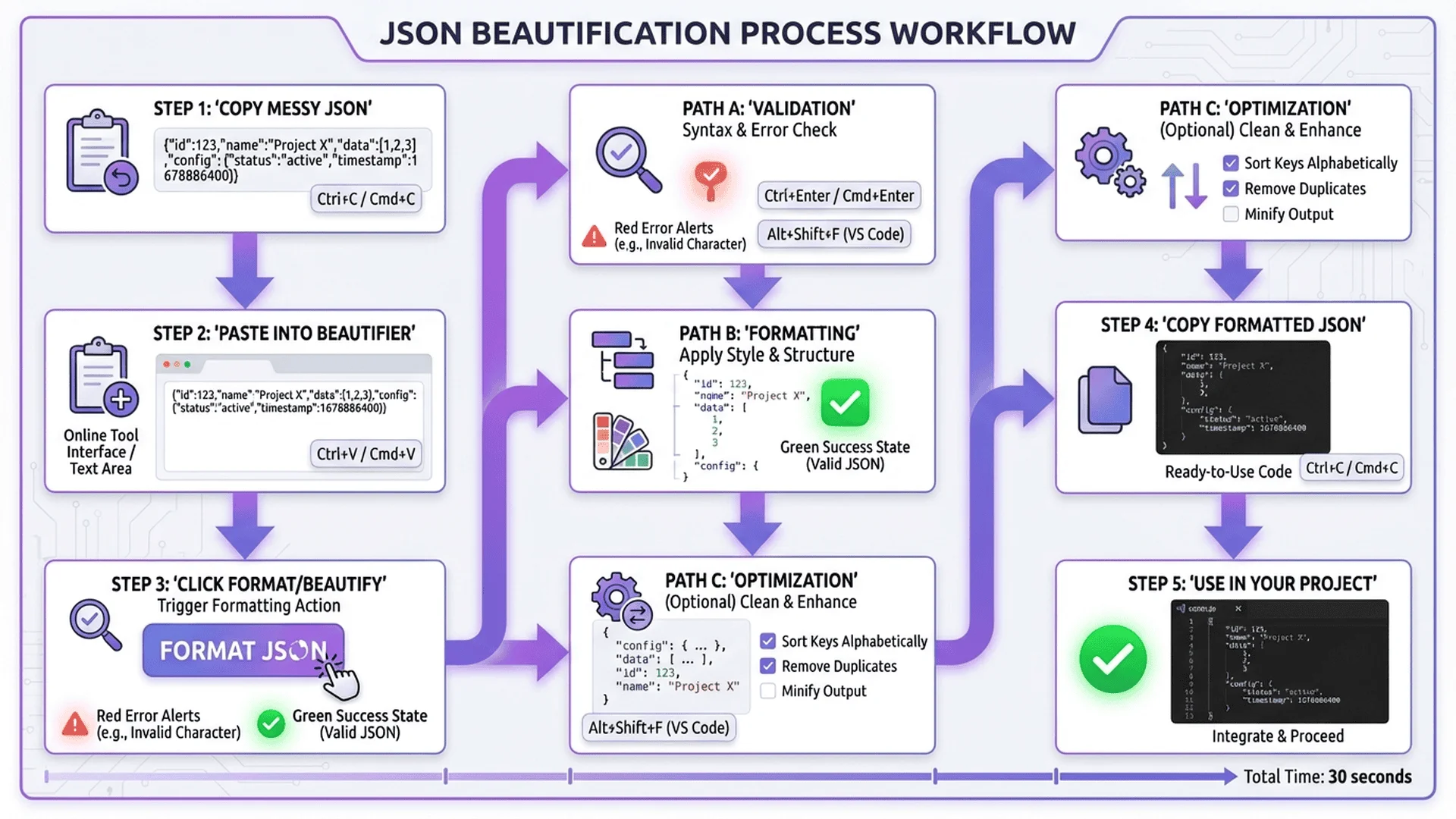
Basic Operation: 3 Steps to Beautify JSON
Step 1: Choose a Tool
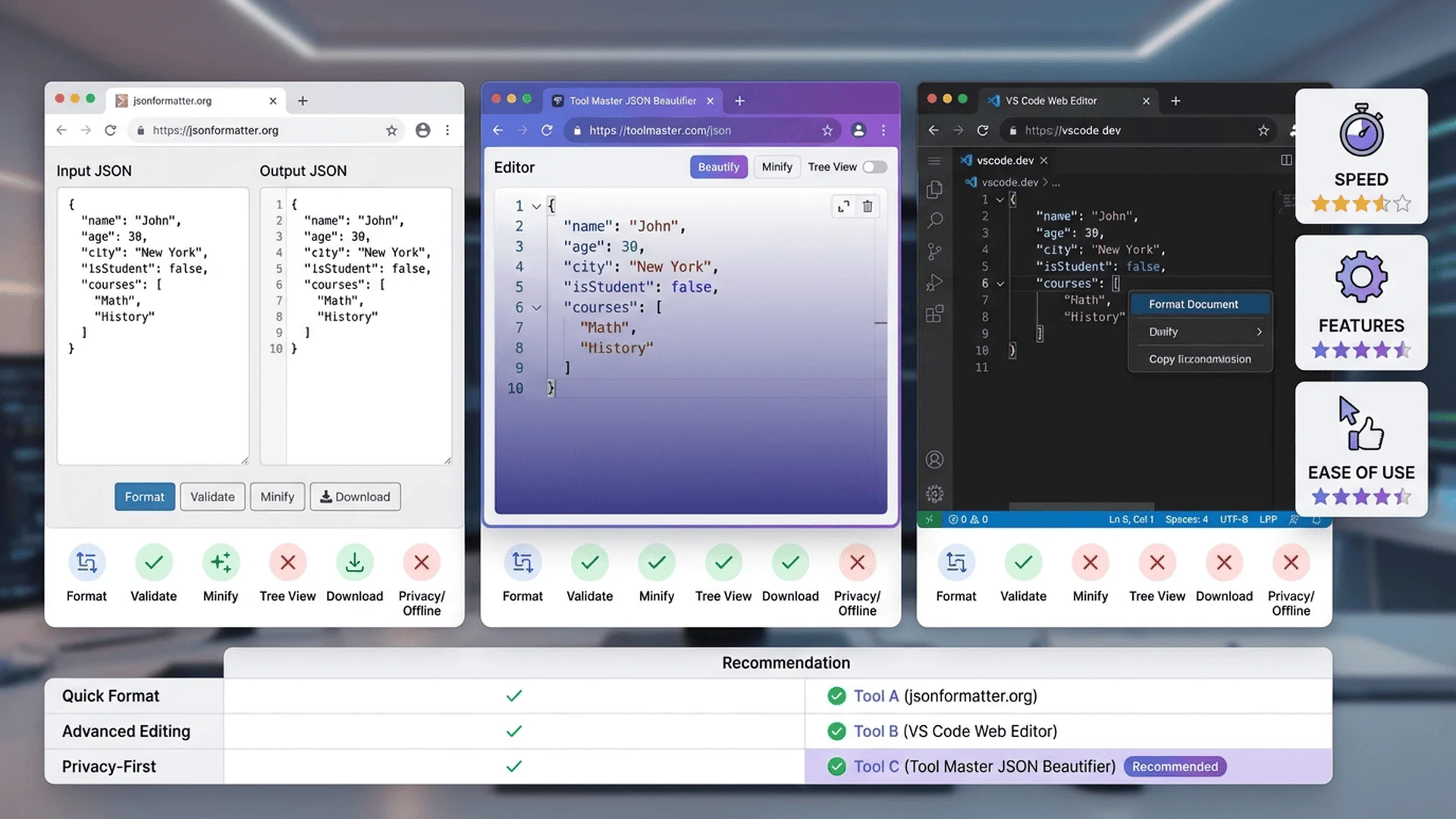
Three recommended approaches:
Approach A: Online Tool (Easiest) ⭐
Recommended Tool: Tool Master JSON Parser
Advantages:
- ✅ No installation, use with browser
- ✅ 100% local processing, data not uploaded to server
- ✅ Supports large files (up to 50MB)
- ✅ One-click beautification + automatic error fixing
How to Use:
1. Open tool link
2. Paste or upload JSON
3. Click "Format" button
4. Copy beautified result
Approach B: Editor (Daily Development)
VS Code:
- Open JSON file
- Press
Shift + Alt + F(Windows/Linux) orShift + Option + F(Mac) - Automatic formatting
Sublime Text:
- Select JSON content
- Press
Ctrl + K, Ctrl + F - Automatic formatting
Approach C: Command Line (Batch Processing)
Using jq:
# Install jq
brew install jq  # macOS
apt-get install jq  # Linux

# Beautify single file
jq '.' input.json > output.json

# Overwrite original file
jq '.' file.json > temp.json && mv temp.json file.json
Using Node.js:
# Beautify and output
node -e "console.log(JSON.stringify(JSON.parse(require('fs').readFileSync('input.json')), null, 2))" > output.json
Step 2: Paste JSON
Three input methods:
Input Method 1: Direct Text Paste
Copy compressed JSON text, paste into tool's input box.
Input Method 2: File Upload
If JSON is large (>100KB), use file upload function.
Precautions:
- Ensure file is UTF-8 encoded
- Check file extension is .json
- Avoid uploading files with BOM
Input Method 3: Load from URL
Some tools support loading JSON directly from URL:
https://api.example.com/data.json
Step 3: Configure Options and Beautify
Core Configuration Options:
Option 1: Indentation Size
| Setting | Pros/Cons | Suitable Scenarios |
|---|---|---|
| 2 spaces | Saves space, industry standard | Web development, most projects |
| 4 spaces | Clearer hierarchy | Python projects, enterprise standards |
| Tab | Flexible (different display in editors) | Personal preference |
Recommendation: Use 2 spaces (consistent with Prettier, Google Style Guide).
Option 2: Key Sorting
Should keys be sorted?
- Sort: Easier lookup, reduces Git conflicts
- Don't sort: Preserve original order (some API orders are meaningful)
Suggestion: Usually sort config files, preserve API response order.
Option 3: Maximum Line Width
Set maximum characters per line (usually 80-120). Auto-wraps when exceeded.
Example (line width 80):
{
  "longArray": [
    "item1",
    "item2",
    "item3"
  ]
}
Click the "Beautify" button and instantly get tidy JSON!
💡 Quick Try: Open JSON Parser now, paste any messy JSON, experience the power of one-click beautification!
5 Advanced Beautification Techniques
Technique 1: Custom Indentation Style (Mixed Indentation)
Sometimes you want objects and arrays to use different indentation methods.
Standard Beautification (all 2 spaces):
{
  "users": [
    {
      "name": "Alice",
      "age": 30
    },
    {
      "name": "Bob",
      "age": 25
    }
  ]
}
Mixed Indentation (array elements on same line):
{
  "users": [
    { "name": "Alice", "age": 30 },
    { "name": "Bob", "age": 25 }
  ]
}
Implementation:
Use tools supporting custom formatting rules, or manually adjust with Prettier config:
// .prettierrc
{
  "printWidth": 80,
  "bracketSameLine": true
}
Suitable Scenarios:
- Simple object arrays (like coordinates, config items)
- Tabular data
Technique 2: Preserve Specific Formats (Partial Beautification)
Some JSON strings contain embedded formats (like SQL, HTML) you want to preserve.
Problem Example:
{
  "query": "SELECT * FROM users WHERE age > 18 AND city = 'Taipei'"
}
Beautification might break SQL readability.
Solutions:
Method A: Use Multi-line Strings (JSON5)
{
  "query": `
    SELECT *
    FROM users
    WHERE age > 18
      AND city = 'Taipei'
  `
}
(Requires JSON5 parser)
Method B: Use Arrays
{
  "query": [
    "SELECT *",
    "FROM users",
    "WHERE age > 18",
    "  AND city = 'Taipei'"
  ]
}
Combine in code with .join('\n').
Technique 3: Batch Beautify Multiple Files
Scenario: Project has 50 JSON files needing unified formatting.
Shell Script Solution:
#!/bin/bash
# Beautify all JSON files in project

find . -name "*.json" -type f | while read file; do
  echo "Beautifying: $file"

  # Use jq to beautify
  jq '.' "$file" > "${file}.tmp"

  # Check if successful
  if [ $? -eq 0 ]; then
    mv "${file}.tmp" "$file"
    echo "✅ Done: $file"
  else
    rm "${file}.tmp"
    echo "❌ Error: $file"
  fi
done

echo "🎉 All files beautified!"
How to Use:
chmod +x beautify-all.sh
./beautify-all.sh
Prettier Solution (Recommended):
# Install Prettier
npm install -g prettier

# Beautify all JSON files
prettier --write "**/*.json"
Technique 4: Conditional Beautification (Based on Size)
Problem: Want small JSON compressed (save space), large JSON beautified (easier reading).
Smart Script:
const fs = require('fs');

function smartBeautify(filePath) {
  const content = fs.readFileSync(filePath, 'utf8');
  const data = JSON.parse(content);

  // Calculate size
  const size = JSON.stringify(data).length;

  let output;
  if (size < 500) {
    // Less than 500 chars: minify
    output = JSON.stringify(data);
    console.log(`📦 Minified: ${filePath} (${size} bytes)`);
  } else {
    // More than 500 chars: beautify
    output = JSON.stringify(data, null, 2);
    console.log(`✨ Beautified: ${filePath} (${size} bytes)`);
  }

  fs.writeFileSync(filePath, output);
}

// Usage
smartBeautify('config.json');
Technique 5: Beautify with Comments Preserved (Using JSON5)
Standard JSON Problem: Doesn't support comments; beautification removes them.
Solution: Use JSON5 format and dedicated parser.
JSON5 Example:
{
  // User settings
  "user": {
    "name": "Alice",
    "age": 30
  },

  /* System settings
     Do not modify */
  "system": {
    "timeout": 5000,
    "retry": 3
  }
}
Beautify JSON5:
# Install json5
npm install -g json5

# Beautify
json5 --space 2 input.json5 > output.json5
Using in JavaScript:
const JSON5 = require('json5');
const fs = require('fs');

const content = fs.readFileSync('config.json5', 'utf8');
const data = JSON5.parse(content);

// Beautified output (preserves comments)
const beautified = JSON5.stringify(data, null, 2);
fs.writeFileSync('config-pretty.json5', beautified);
🎯 Recommended Tool Combination
When beautifying JSON, these tools significantly boost efficiency:
| Tool | Purpose | Features |
|---|---|---|
| JSON Parser | Beautify, validate, fix | One-click beautify, auto-indent |
| Color Shower | Adjust editor colors | Improve code readability |
| Unit Converter | Numeric unit conversion | 79 units supported |
💡 Tip: All tools completely free, data processed locally in browser to protect your privacy.
Online Beautifier Tool Comparison
Tool Evaluation Standards
When evaluating a JSON Beautifier, focus on:
| Standard | Description | Weight |
|---|---|---|
| Feature Completeness | Beautify, validate, fix, download | ⭐⭐⭐ |
| Processing Speed | Large file processing time | ⭐⭐⭐ |
| Privacy Protection | Local processing vs server upload | ⭐⭐⭐ |
| User Interface | Clean, intuitive, responsive | ⭐⭐ |
| Custom Options | Indentation, sorting, line width, etc. | ⭐⭐ |
5 Popular Tool Comparison
1. Tool Master JSON Parser ⭐⭐⭐⭐⭐
URL: /tools/json-parser
Advantages:
- ✅ 100% local processing (JavaScript runs in browser)
- ✅ Supports large files (up to 50MB)
- ✅ Automatic error fixing
- ✅ Completely free, no ads
- ✅ Supports custom indentation (2/4 spaces or Tab)
Disadvantages:
- ⚠️ Doesn't support JSON5 comments
Suitable Scenarios:
- Daily development beautification
- API response viewing
- Config file formatting
Rating: 9.5/10
2. JSONLint
URL: jsonlint.com
Advantages:
- ✅ Simple and intuitive
- ✅ Real-time validation
- ✅ Clear error messages
Disadvantages:
- ⚠️ Data uploaded to server (privacy concern)
- ⚠️ Fewer custom options
- ⚠️ Slow large file processing
Suitable Scenarios:
- Quick syntax validation
- Small JSON beautification
Rating: 7.0/10
3. JSON Formatter & Validator
URL: jsonformatter.curiousconcept.com
Advantages:
- ✅ Multiple visualization modes (tree view, table)
- ✅ Supports JSONPath queries
- ✅ Rich color themes
Disadvantages:
- ⚠️ Complex interface (not beginner-friendly)
- ⚠️ Slow loading
Suitable Scenarios:
- Exploring complex JSON structures
- Need visualization display
Rating: 8.0/10
4. JSON Editor Online
URL: jsoneditoronline.org
Advantages:
- ✅ Visual editing (like Excel)
- ✅ Search and filter functions
- ✅ Supports large files
Disadvantages:
- ⚠️ Steeper learning curve
- ⚠️ Pro version requires payment
Suitable Scenarios:
- Editing large JSON
- Need visual operations
Rating: 8.5/10
5. Prettier Playground
URL: prettier.io/playground
Advantages:
- ✅ Supports multiple languages (not just JSON)
- ✅ Real-time preview
- ✅ Adjustable Prettier options
Disadvantages:
- ⚠️ Complex features (more than beautification)
- ⚠️ Focused on formatting, no validation
Suitable Scenarios:
- Testing Prettier config
- Multi-language formatting
Rating: 7.5/10
Recommendation Selection Guide
Quick Decision Tree:
You need...
├─ Daily development beautification? → Use Tool Master JSON Parser ⭐
├─ Quick syntax validation? → Use JSONLint
├─ Visual editing? → Use JSON Editor Online
├─ Explore complex structures? → Use JSON Formatter & Validator
└─ Test formatting config? → Use Prettier Playground
My Recommendation: For 99% of use cases, Tool Master JSON Parser is the best choice. It's fast, secure, feature-complete, and completely free.
Practical Application Scenarios for Beautification
Scenario 1: API Development and Testing
Problem: Postman or curl returns compressed single-line JSON.
Solution Flow:
- Send API Request
curl https://api.example.com/users/1
Response (single line):
{"id":1,"name":"Alice","email":"[email protected]","address":{"street":"123 Main St","city":"Taipei","zip":"100"},"orders":[{"id":101,"total":1500},{"id":102,"total":2300}]}
-
Copy Response Content
-
Paste into JSON Beautifier
Open JSON Parser, paste content, click "Format".
- Get Beautified Result
{
  "id": 1,
  "name": "Alice",
  "email": "[email protected]",
  "address": {
    "street": "123 Main St",
    "city": "Taipei",
    "zip": "100"
  },
  "orders": [
    {
      "id": 101,
      "total": 1500
    },
    {
      "id": 102,
      "total": 2300
    }
  ]
}
Now clearly see:
- User has address object (3 fields)
- orders is array with 2 orders
- Write Tests or Processing Logic
Code based on structure:
const response = await fetch('/api/users/1');
const user = await response.json();

// Clearly know structure, directly access
const city = user.address.city;
const firstOrderTotal = user.orders[0].total;
Scenario 2: Config File Maintenance
Project Config File Management:
Before (messy tsconfig.json):
{"compilerOptions":{"target":"ES2020","module":"commonjs","strict":true,"esModuleInterop":true,"skipLibCheck":true},"include":["src/**/*"],"exclude":["node_modules"]}
After (beautified):
{
  "compilerOptions": {
    "target": "ES2020",
    "module": "commonjs",
    "strict": true,
    "esModuleInterop": true,
    "skipLibCheck": true
  },
  "include": [
    "src/**/*"
  ],
  "exclude": [
    "node_modules"
  ]
}
Team Collaboration Advantages:
- Easier Code Review: Clearly see each config item
- Clearer Git Diff: When modifying an option, diff only shows that line
- Faster New Hire Onboarding: New members can quickly understand project config
Best Practice:
# Add script to package.json
{
  "scripts": {
    "format:config": "prettier --write '**/*.json'"
  }
}

# Auto-format before commit
npm run format:config
Scenario 3: Log Analysis
Problem: Application-generated JSON logs hard to read.
Log Example (Node.js Winston output):
{"level":"error","message":"Database connection failed","timestamp":"2025-01-27T10:30:00.000Z","meta":{"host":"db.example.com","port":5432,"error":"ECONNREFUSED"}}
After Beautification:
{
  "level": "error",
  "message": "Database connection failed",
  "timestamp": "2025-01-27T10:30:00.000Z",
  "meta": {
    "host": "db.example.com",
    "port": 5432,
    "error": "ECONNREFUSED"
  }
}
Instantly see:
- Error level: error
- Issue: Database connection failed
- Target host: db.example.com:5432
- Error reason: Connection refused
Batch Process Logs:
# Beautify each line of log file
cat app.log | while read line; do
  echo "$line" | jq '.'
done > pretty-log.json
Scenario 4: Data Import/Export
Problem: JSON exported from database or third-party systems is messy.
PostgreSQL Export Example:
-- Export JSON
COPY (SELECT row_to_json(t) FROM users t) TO '/tmp/users.json';
Export Result (single line):
{"id":1,"name":"Alice","created_at":"2025-01-27T10:30:00"}{"id":2,"name":"Bob","created_at":"2025-01-27T11:00:00"}
Processing Flow:
- Convert JSON Lines to Array
# Using jq
jq -s '.' /tmp/users.json > /tmp/users-array.json
- Beautify Array
[
  {
    "id": 1,
    "name": "Alice",
    "created_at": "2025-01-27T10:30:00"
  },
  {
    "id": 2,
    "name": "Bob",
    "created_at": "2025-01-27T11:00:00"
  }
]
- Import to Other Systems or Analyze
Scenario 5: Documentation and Example Generation
Problem: Need to show JSON examples in technical documentation.
Markdown Documentation:
## API Response Example

When calling `GET /api/users/:id`, returns the following format:

\`\`\`json
{
  "id": 1,
  "name": "Alice Wang",
  "email": "[email protected]",
  "profile": {
    "avatar": "https://example.com/avatar.jpg",
    "bio": "Software Engineer",
    "location": "Taipei, Taiwan"
  },
  "stats": {
    "posts": 42,
    "followers": 156,
    "following": 89
  }
}
\`\`\`
Beautified JSON makes documentation more professional and readable.
Auto-generate Documentation Examples:
// Using JSDoc with beautified JSON
/**
 * User API Response
 * @typedef {Object} UserResponse
 * @property {number} id - User ID
 * @property {string} name - Full name
 * @example
 * {
 *   "id": 1,
 *   "name": "Alice Wang",
 *   "email": "[email protected]"
 * }
 */
Common Issues and Solutions
Issue 1: File Becomes Large After Beautification
Reason: Adding indentation and line breaks increases file size (about 30-50% increase).
Solutions:
Development Environment: Use beautified version (easier reading)
Production Environment: Use compressed version (save bandwidth)
Automation Process:
// package.json
{
  "scripts": {
    "build": "npm run minify:json",
    "minify:json": "json-minify config.json > dist/config.json"
  }
}
Issue 2: Beautification Breaks Special Formats
Scenario: JSON contains Base64-encoded images or long strings.
Problem Example:
{
  "image": "data:image/png;base64,iVBORw0KGgoAAAANS... (very long string)"
}
Beautification might auto-wrap, breaking Base64 string.
Solutions:
Method A: Adjust Prettier Settings
// .prettierrc
{
  "printWidth": 10000  // Set very large line width to avoid wrapping
}
Method B: Use .prettierignore
# .prettierignore
data/*.json  # Ignore data files
Issue 3: Team Members Use Different Beautification Settings
Problem: Alice uses 2 spaces, Bob uses 4 spaces, causing Git conflicts.
Solution: Unify with Prettier config.
Steps:
- Create Project Config (
.prettierrc):
{
  "printWidth": 80,
  "tabWidth": 2,
  "useTabs": false,
  "semi": true,
  "singleQuote": false
}
- Add Git Hook (
.husky/pre-commit):
#!/bin/sh
npx prettier --check "**/*.json"
- Team Members Install Prettier:
npm install --save-dev prettier
From now on, everyone's committed JSON format is unified.
Issue 4: Some JSON Harder to Read After Beautification
Scenario: Coordinate arrays, color configs, and other simple data.
Before (beautified):
{
  "coordinates": [
    10,
    20,
    30,
    40,
    50,
    60
  ]
}
After (manually adjusted):
{
  "coordinates": [10, 20, 30, 40, 50, 60]
}
Solution: Manually keep certain arrays on same line, or use tools supporting "compact arrays".
Summary and Best Practices
Golden Rules of Beautification
- Beautify for development, compress for production
- Unify team formatting standards (use Prettier)
- Automate formatting process (Git Hook, CI/CD)
- Choose privacy-safe tools (local processing priority)
- Adjust settings by scenario (logs, config files, API responses)
Recommended Workflow
Write/Receive JSON
    ↓
Use JSON Beautifier to format
    ↓
Validate syntax (ensure no errors)
    ↓
Choose version by purpose
    ├─ Development: Keep beautified version
    └─ Deployment: Use compressed version
    ↓
Commit to version control
Immediate Actions
3 Recommendations:
- Bookmark Tool: JSON Parser - Beautify JSON anytime
- Configure Editor: Enable "Format On Save", auto-beautify
- Learn Advanced Tips: Explore JSON Formatter Best Practices - Deep dive into formatting standards
Remember: Beautification isn't just for aesthetics, but to boost development efficiency and team collaboration quality. A tidy JSON can save you 50% debugging time!
Try JSON Parser now and transform your messy JSON into art!
Extended Learning Resources
Related Articles
Extended Reading:
1. Complete JSON Parser Guide - 7 practical tips from beginner to expert
2. JSON Formatter Best Practices - 6 formatting tips for team collaboration
3. Complete JSON Syntax Error Solutions - 30+ error examples and fixes
4. Complete Online JSON Validator Guide - 5 steps to quickly detect syntax errors
5. JSON Schema Validation Practical Guide - Build automated data validation systems
6. JSON Parser FAQ Guide - 15 common questions answered quickly
Tools and Resources
- JSON Parser Complete Guide - Deep dive into JSON processing
- JSON Parser Technical Documentation - Implementation details
- Developer Tools Category - Explore more developer tools
- Prettier Official Documentation - prettier.io
- jq Manual - stedolan.github.io/jq/manual/
Recommended Extensions
VS Code:
- Prettier - Code formatter
- JSON Tools - Sort, minify, beautify
- Sort JSON objects - Deep sorting