JSON格式化最佳實踐
JSON Formatter Best Practices | 6 Beautification Tips for Team Collaboration
Have you ever opened a JSON file to find all content squeezed into one line, completely incomprehensible? Or does your team use different formatting styles, turning code reviews into nightmares? Don't worry! This article teaches you 6 professional JSON formatting techniques that not only beautify your JSON files but also boost team collaboration efficiency by 300%! Whether you're a beginner developer or senior engineer, these best practices can be immediately applied to your projects.
Why Is JSON Formatting So Important?
Readability Is the Foundation of Productivity
Imagine this scenario: You take over a project, open the config file, and see JSON like this:
{"name":"user","age":25,"address":{"city":"Taipei","zip":"100"},"hobbies":["reading","coding"]}
vs.
{
  "name": "user",
  "age": 25,
  "address": {
    "city": "Taipei",
    "zip": "100"
  },
  "hobbies": ["reading", "coding"]
}
Which is easier to understand? The answer is obvious.
Three Major Benefits of Formatting
1. Reduce Bug Occurrence
Clean formatting lets you spot structural errors at a glance—like missing commas or mismatched brackets.
2. Accelerate Code Review
Team members can quickly understand your data structure without spending time parsing messy formats.
3. Improve Maintenance Efficiency
When modifications are needed later, clear formatting helps you quickly locate fields to change.
Common Formatting Problems
Many developers encounter these frustrations:
- Problem 1: Inconsistent indentation (some use 2 spaces, others 4, some use tabs)
- Problem 2: Chaotic key order (same object has different field orders in different files)
- Problem 3: Uncertain line breaks (should short arrays expand? when should nested objects indent?)
- Problem 4: Low efficiency with large JSON (manually formatting large files is extremely time-consuming)
These issues seem minor but accumulate to seriously impact development efficiency. Let's see how to solve them.

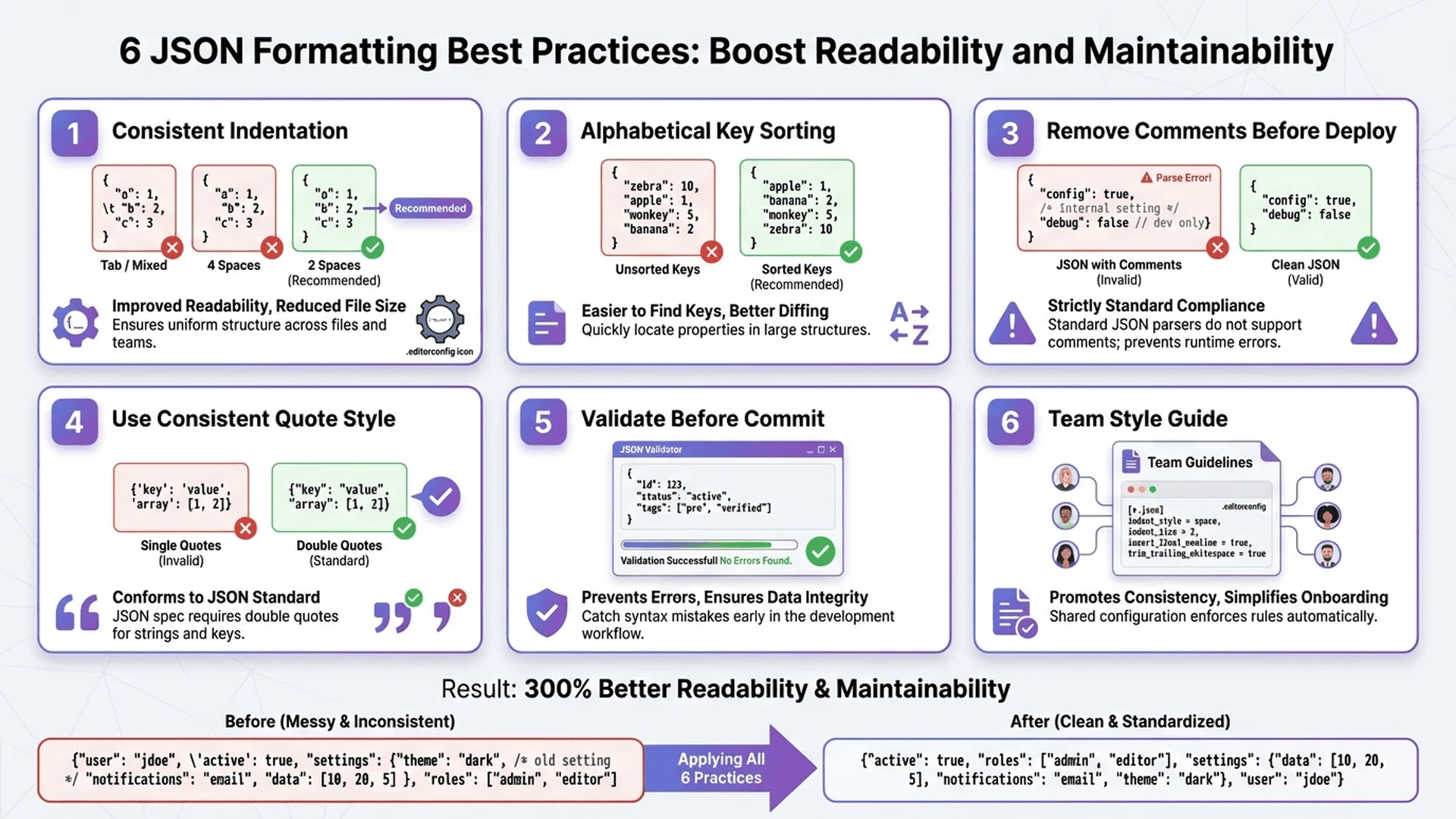
Tip 1: Unified Indentation Standard (2 Spaces vs 4 Spaces)
Why Is Indentation Standard Important?
Indentation is core to JSON readability. Inconsistent indentation makes code look like this:
{
  "user": {
      "name": "Alice",
    "age": 30,
        "address": {
      "city": "Taipei"
        }
  }
}
This chaotic indentation is visually confusing.
Industry Mainstream Standards
Currently, the industry has two main standards:
| Standard | Advantages | Disadvantages | Suitable Scenarios |
|---|---|---|---|
| 2 spaces | Saves horizontal space, good for deep nesting | May not be obvious enough on small screens | Web development, frontend projects |
| 4 spaces | Clearer visual hierarchy | Easy to exceed screen width with deep nesting | Backend development, config files |
My Recommendation: Choose 2 spaces as the default standard. Here's why:
- Modern Trend: Google, Airbnb, Prettier and other mainstream style guides recommend 2 spaces
- Practicality: JSON often has deep nesting; 2 spaces prevents code from being too wide
- Tool Support: Most online JSON formatters default to 2 spaces
How to Configure in Tools?
Visual Studio Code:
- Open Settings (Cmd/Ctrl + ,)
- Search "Tab Size"
- Set to 2
- Ensure "Insert Spaces" is checked
Online Tools:
When using our JSON Parser, you can select indentation size in "Formatting Options". After pasting your JSON, choose "2-space indentation" for one-click unified formatting.
Practical Example
Before (chaotic indentation):
{
"name": "Product",
    "price": 100,
  "tags": ["sale", "new"]
}
After (2-space unified):
{
  "name": "Product",
  "price": 100,
  "tags": ["sale", "new"]
}

Tip 2: Key Sorting Strategy (Improve Maintainability)
Why Sort Keys?
Look at these two JSONs—which makes it easier to find specific fields?
Unsorted:
{
  "country": "Taiwan",
  "age": 25,
  "zip": "100",
  "name": "Alice",
  "city": "Taipei"
}
Alphabetically Sorted:
{
  "age": 25,
  "city": "Taipei",
  "country": "Taiwan",
  "name": "Alice",
  "zip": "100"
}
Sorted JSON has these advantages:
✅ Quick Lookup: Locate fields as fast as looking up a dictionary
✅ Reduce Conflicts: Easier to compare differences during Git merge
✅ Consistency: Same object has same field order across different files
Three Sorting Strategies
Strategy 1: Alphabetical Order (General Recommendation)
The simplest and most straightforward approach, suitable for most scenarios.
{
  "address": "...",
  "age": 30,
  "email": "...",
  "name": "..."
}
Strategy 2: Logical Grouping Sort (Large Object Recommendation)
Group related fields, sort alphabetically within groups.
{
  // Basic info
  "id": "001",
  "name": "Product A",
  "type": "electronics",

  // Price related
  "currency": "TWD",
  "discount": 0.1,
  "price": 1000,

  // Stock related
  "stock": 50,
  "warehouse": "Taipei"
}
Strategy 3: Importance Sort (API Response Recommendation)
Put most frequently used fields first.
{
  "id": "12345",          // Most important: identifier
  "status": "success",    // Secondary: status
  "data": {...},          // Core: data body
  "timestamp": "...",     // Auxiliary: timestamp
  "metadata": {...}       // Auxiliary: metadata
}
How to Auto-Sort?
Using Our Tool:
Paste JSON into JSON Parser, check "Sort by keys" option, and the tool will automatically sort all levels of keys.
Using Code (JavaScript):
function sortKeys(obj) {
  if (typeof obj !== 'object' || obj === null) return obj;
  if (Array.isArray(obj)) return obj.map(sortKeys);

  return Object.keys(obj)
    .sort()
    .reduce((sorted, key) => {
      sorted[key] = sortKeys(obj[key]);
      return sorted;
    }, {});
}

const sorted = sortKeys(yourJSON);
Precautions
⚠️ Exceptions: Some API specifications require specific order (like JSON-LD's @context must be first). In such cases, follow the specification and don't sort.
Tip 3: Handling Comments and Documentation (JSON5 and Alternatives)
JSON's Comment Dilemma
Standard JSON doesn't support comments. This is a pain point for many developers:
{
  "timeout": 3000,  // ❌ This will error!
  "retry": 3
}
But in config files or example code, we often need to add explanations. What to do?
Three Solutions
Solution 1: Use Special Keys (Standard JSON)
{
  "_comment": "Timeout in milliseconds",
  "timeout": 3000,
  "_comment_retry": "Number of retry attempts",
  "retry": 3
}
Pros: Fully compliant with JSON standard
Cons: Pollutes data; need to filter comment fields during parsing
Solution 2: Use JSON5 (Recommended)
JSON5 is a superset of JSON that supports comments and more features:
{
  // This is a single-line comment
  "timeout": 3000,

  /* This is a multi-line comment
     can write many explanations */
  "retry": 3,

  // JSON5 also supports trailing commas
  "maxRetry": 5,
}
Pros: Friendly syntax, supports comments
Cons: Requires additional parser
How to Use JSON5:
// npm install json5
const JSON5 = require('json5');
const config = JSON5.parse(fs.readFileSync('config.json5', 'utf8'));
Solution 3: Use YAML (Config File Recommendation)
If your project involves config files, consider switching to YAML:
# Timeout in milliseconds
timeout: 3000

# Number of retry attempts
retry: 3
YAML natively supports comments with simpler syntax, perfect for config files.
Documentation Best Practices
Besides comments, you can also:
1. Create Schema Documentation
{
  "$schema": "http://json-schema.org/draft-07/schema#",
  "title": "User Configuration",
  "type": "object",
  "properties": {
    "timeout": {
      "type": "number",
      "description": "Request timeout in milliseconds"
    }
  }
}
2. Use Naming Conventions
{
  "timeout_ms": 3000,        // Unit suffix
  "max_retry_count": 3,      // Descriptive naming
  "is_enabled": true         // Boolean prefix
}
3. Create README
Create JSON_FORMAT_GUIDE.md in project root to document your formatting standards and comment conventions.
Tip 4: Line Break Rules for Arrays and Objects
When Should You Break Lines?
This is the most confusing question. Look at these examples:
Example 1: Short Array (no break)
{
  "colors": ["red", "green", "blue"]
}
Example 2: Long Array (break)
{
  "supportedLanguages": [
    "JavaScript",
    "Python",
    "Java",
    "C++",
    "Go"
  ]
}
Example 3: Object Array (must break)
{
  "users": [
    {
      "id": 1,
      "name": "Alice"
    },
    {
      "id": 2,
      "name": "Bob"
    }
  ]
}
Golden Rules
I recommend adopting this rule set:
| Situation | Rule | Example |
|---|---|---|
| Simple array ≤ 3 items | Same line | ["a", "b", "c"] |
| Simple array > 3 items | One item per line | ["a",\n "b",\n "c",\n "d"] |
| Object array | Must be one item per line | [{...},\n {...}] |
| Nested array | Must break | [\n [...],\n [...]\n] |
| Empty array/object | Same line | [] or {} |
Practical Example
Before (inconsistent):
{
  "tags": ["tag1", "tag2", "tag3", "tag4", "tag5", "tag6"],
  "user": {"name": "Alice", "age": 30, "email": "[email protected]"}
}
After (rules applied):
{
  "tags": [
    "tag1",
    "tag2",
    "tag3",
    "tag4",
    "tag5",
    "tag6"
  ],
  "user": {
    "name": "Alice",
    "age": 30,
    "email": "[email protected]"
  }
}
Use Tools for Auto-Processing
Manual line break adjustment too time-consuming? Use JSON Parser's "Smart Line Break" feature. The tool automatically decides whether to break based on array length and complexity.
🎯 Recommended Tool Combination
When formatting JSON, these tools can significantly boost efficiency:
| Tool | Purpose | Features |
|---|---|---|
| JSON Parser | Validate, format, fix | Auto-indent, key sorting |
| Color Shower | Adjust editor colors | Improve code readability |
| Unit Converter | Numeric unit conversion | 79 units supported |
💡 Tip: All tools are completely free, with data processed locally in your browser to protect your privacy.
Tip 5: Handling Large JSON Files
Challenges of Large Files
When your JSON file exceeds 1MB, you'll encounter these problems:
❌ Editor Lag: Opening a 10MB JSON file crashes VS Code
❌ Slow Formatting: Online tools take 10+ seconds to process large files
❌ Hard to Locate: Finding one field in tens of thousands of lines is like finding a needle in a haystack
Solution Strategies
Strategy 1: Split Files
Before (single large file):
config.json (5MB)
After (split):
config/
  ├── database.json (500KB)
  ├── api.json (800KB)
  ├── features.json (1.2MB)
  └── i18n/ (multiple language files)
      ├── en.json
      ├── zh-TW.json
      └── ja.json
Strategy 2: Use Compressed Version
For scenarios where human readability isn't needed (like production environment), use compressed format:
Development Environment (formatted):
{
  "users": [
    {
      "id": 1,
      "name": "Alice"
    }
  ]
}
Production Environment (compressed):
{"users":[{"id":1,"name":"Alice"}]}
Compression can reduce file size by 20-40%.
Strategy 3: Use Professional Tools
For super large JSON (>10MB), use professional tools:
Command-line Tool (jq):
# Format large file
cat large.json | jq '.' > formatted.json

# Extract only needed parts
cat large.json | jq '.users[] | select(.age > 18)'
Online Tool (Our JSON Parser):
Our JSON Parser uses Web Worker technology to process large files in the background without freezing the browser. Supports JSON files up to 50MB.
Performance Optimization Tips
Tip 1: Progressive Loading
// Use Streaming API for progressive parsing
const response = await fetch('large.json');
const reader = response.body.getReader();
// Process in batches...
Tip 2: Use JSON Lines Format
For log files or datasets, consider using JSON Lines (.jsonl):
{"id": 1, "name": "Alice"}
{"id": 2, "name": "Bob"}
{"id": 3, "name": "Charlie"}
Each line is an independent JSON object that can be processed line by line without loading everything at once.
Tip 6: Establish Team Formatting Standards
Why Do You Need Team Standards?
Imagine your team has 5 people, each using different formats:
- Alice: 2-space indent, key sorting
- Bob: 4-space indent, no sorting
- Charlie: Tab indent, mixed style
- David: Compressed format, no line breaks
- Eve: Uses JSON5, has comments
Result? Every Git merge is a disaster!
5 Steps to Establish Standards
Step 1: Choose Base Standard
Pick one from these mainstream standards:
- Airbnb JavaScript Style Guide (recommended for startups)
- Google JSON Style Guide (recommended for large enterprises)
- Prettier Default (recommended for frontend teams)
My Recommendation: Use Prettier default config because:
- Zero configuration, works out of the box
- Broad community support
- Automatic formatting, reduces disputes
Step 2: Write Standard Documentation
Create .prettierrc in project root:
{
  "printWidth": 80,
  "tabWidth": 2,
  "useTabs": false,
  "semi": true,
  "singleQuote": false,
  "trailingComma": "none",
  "bracketSpacing": true
}
Step 3: Integrate into Development Workflow
Git Pre-commit Hook:
# .husky/pre-commit
#!/bin/sh
npm run format:check
CI/CD Check:
# .github/workflows/format-check.yml
name: Format Check
on: [pull_request]
jobs:
  format:
    runs-on: ubuntu-latest
    steps:
      - uses: actions/checkout@v2
      - run: npm run format:check
Step 4: Editor Integration
VS Code Settings (.vscode/settings.json):
{
  "editor.formatOnSave": true,
  "editor.defaultFormatter": "esbenp.prettier-vscode",
  "[json]": {
    "editor.tabSize": 2,
    "editor.insertSpaces": true
  }
}
Step 5: Team Training
Hold a 30-minute training session covering:
- Why do we need unified formatting? (5 minutes)
- What are our formatting standards? (10 minutes)
- How to set up development environment? (10 minutes)
- Q&A (5 minutes)
Standard Template (Ready to Use)
Basic Standards:
# JSON Formatting Standards

## Indentation
- Use 2 spaces (don't use tabs)

## Key Order
- Alphabetical order (unless logical grouping needed)

## Line Breaks
- Array ≤3 items: same line
- Array >3 items: one item per line
- Object array: must be one item per line

## Comments
- Use JSON5 format (development environment)
- Remove all comments in production

## Tools
- Use Prettier for auto-formatting
- Must run `npm run format` before commit
Common Questions
Q: What if team members don't comply?
A: Use Git Hooks for mandatory checks. Unformatted code cannot be committed.
Q: Should old projects be uniformly formatted?
A: Recommend phased approach:
1. Unify new code first
2. Format old files when modifying them
3. Avoid one-time formatting (breaks Git history)
Q: How to convince team to adopt standards?
A: Show data:
- Code review time reduced by 30% after formatting
- Format-related Git conflicts reduced by 80%
- New hire onboarding speed increased by 50%
Common Formatting Errors and Fixes
Error 1: Mixed Quotes
Wrong Example:
{
  "name": 'Alice',     // ❌ Single quote
  "age": 30
}
Fix: JSON only allows double quotes
{
  "name": "Alice",     // ✅ Double quote
  "age": 30
}
Error 2: Trailing Comma
Wrong Example:
{
  "name": "Alice",
  "age": 30,           // ❌ Comma after last item
}
Fix: Remove trailing comma
{
  "name": "Alice",
  "age": 30            // ✅ No comma on last item
}
(Note: JSON5 allows trailing commas, but standard JSON doesn't)
Error 3: Number Format Error
Wrong Example:
{
  "price": 01.50,      // ❌ Leading zero
  "discount": .5,      // ❌ Missing integer part
  "tax": 0.           // ❌ Missing decimal part
}
Fix:
{
  "price": 1.50,       // ✅ Remove leading zero
  "discount": 0.5,     // ✅ Add integer part
  "tax": 0.0          // ✅ Add decimal part
}
Error 4: Unescaped Control Characters
Wrong Example:
{
  "description": "Line 1
Line 2"
}
Fix: Use escape characters
{
  "description": "Line 1\nLine 2"
}
Quick Fix Tool
Encountering these errors? Use JSON Parser's "Auto-Fix" feature. The tool automatically:
✅ Converts single quotes to double quotes
✅ Removes trailing commas
✅ Fixes number formats
✅ Escapes special characters
Just paste your broken JSON, click "Auto-Fix", done in 3 seconds!
Recommended Tools and Resources
Online Tools
| Tool | Features | Suitable Scenarios |
|---|---|---|
| Tool Master JSON Parser | Local processing, auto-fix, smart line breaks | ⭐ Most recommended: privacy safe, feature complete |
| JSONLint | Simple validation | Quick syntax error check |
| JSON Editor Online | Visual editing | Edit complex nested structures |
Editor Extensions
VS Code:
- Prettier (must-have): Auto-formatting
- JSON Tools: Key sorting, compression
- Sort JSON Objects: Deep sorting
Sublime Text:
- Pretty JSON: Formatting and validation
- JSONLint: Syntax checking
Command-line Tools
# jq: Powerful JSON processor
brew install jq
cat file.json | jq '.'

# fx: Interactive JSON browser
npm install -g fx
fx file.json

# json-server: Quick mock API setup
npm install -g json-server
json-server --watch db.json
Further Reading
Want to dive deeper into technical details? Check these resources:
Tools and Documentation:
1. JSON Parser Complete Guide - Understand the principles behind formatting
2. JSON Parser Technical Documentation - See our implementation details
3. Developer Tools Category - Explore more developer tools
Extended Reading:
1. Complete JSON Parser Guide - 7 practical tips from beginner to expert
2. JSON Beautifier Usage Guide - Master 5 beautification techniques in 3 minutes
3. Complete JSON Syntax Error Solutions - 30+ error examples and fixes
4. Complete Online JSON Validator Guide - 5 steps to detect syntax errors
5. JSON Schema Validation Practical Guide - Build automated data validation systems
6. JSON Parser FAQ Guide - 15 common questions answered quickly
Summary and Action Recommendations
6 Tips Quick Review
- Unified Indentation: Choose 2 spaces as standard
- Key Sorting: Alphabetical order or logical grouping
- Handle Comments: Use JSON5 or Schema documentation
- Line Break Rules: Arrays ≤3 items same line, >3 items separate lines
- Large Files: Split, compress, use professional tools
- Team Standards: Establish standards, integrate tools, regular training
3 Actions to Start Immediately
Action 1: Format your project now
- Install Prettier:
npm install --save-dev prettier - Create config file:
.prettierrc - Run formatting:
npx prettier --write "**/*.json"
Action 2: Set up auto-formatting
Enable "Format On Save" in VS Code—no more manual formatting.
Action 3: Promote to team
Share this article with team members and discuss establishing your formatting standards together.
Continuous Improvement
Formatting isn't a one-time job but an ongoing habit:
- Weekly: Check for new formatting issues
- Monthly: Review team standards, adjust based on feedback
- Quarterly: Evaluate tool updates, adopt better solutions
Free Tools to Help You
Remember, you don't need to handle all this manually. Using JSON Parser lets you:
- ✅ One-click format any JSON
- ✅ Auto-fix common errors
- ✅ Support custom indentation and sorting
- ✅ 100% local processing, privacy protected
- ✅ Completely free, no usage limits
Try it now: Copy your JSON, paste into the tool, click "Format", see beautified results instantly!
References
Official Documentation
-
JSON Official Specification
RFC 8259 - The JavaScript Object Notation (JSON) Data Interchange Format
Standard definition of JSON, understand what constitutes valid JSON syntax -
JSON5 Official Website
json5.org
JSON superset supporting comments and more features -
Prettier Official Documentation
prettier.io/docs
Configuration and usage of auto-formatting tool
Style Guides
-
Google JSON Style Guide
google.github.io/styleguide/jsoncstyleguide.xml
Google's JSON formatting recommendations -
Airbnb JavaScript Style Guide
github.com/airbnb/javascript
Industry standard including JSON formatting
Tool Documentation
-
jq Manual
stedolan.github.io/jq/manual/
Complete manual for command-line JSON processor -
VS Code JSON Editing
code.visualstudio.com/docs/languages/json
VS Code's JSON editing features
Extended Learning
-
JSON Schema
json-schema.org
Learn how to validate JSON structure -
JSONPath
goessner.net/articles/JsonPath/
Expression language for querying JSON data