JSON解析常見問題
JSON Parser FAQ Guide | 15 Essential Questions from Beginner to Expert
Get headaches from "Unexpected token"? You're not alone—it's the most common JSON error worldwide every day.
A single comma error can cost you 2 hours of bug hunting.
This FAQ compiles 15 most common questions, each with real examples and solutions.
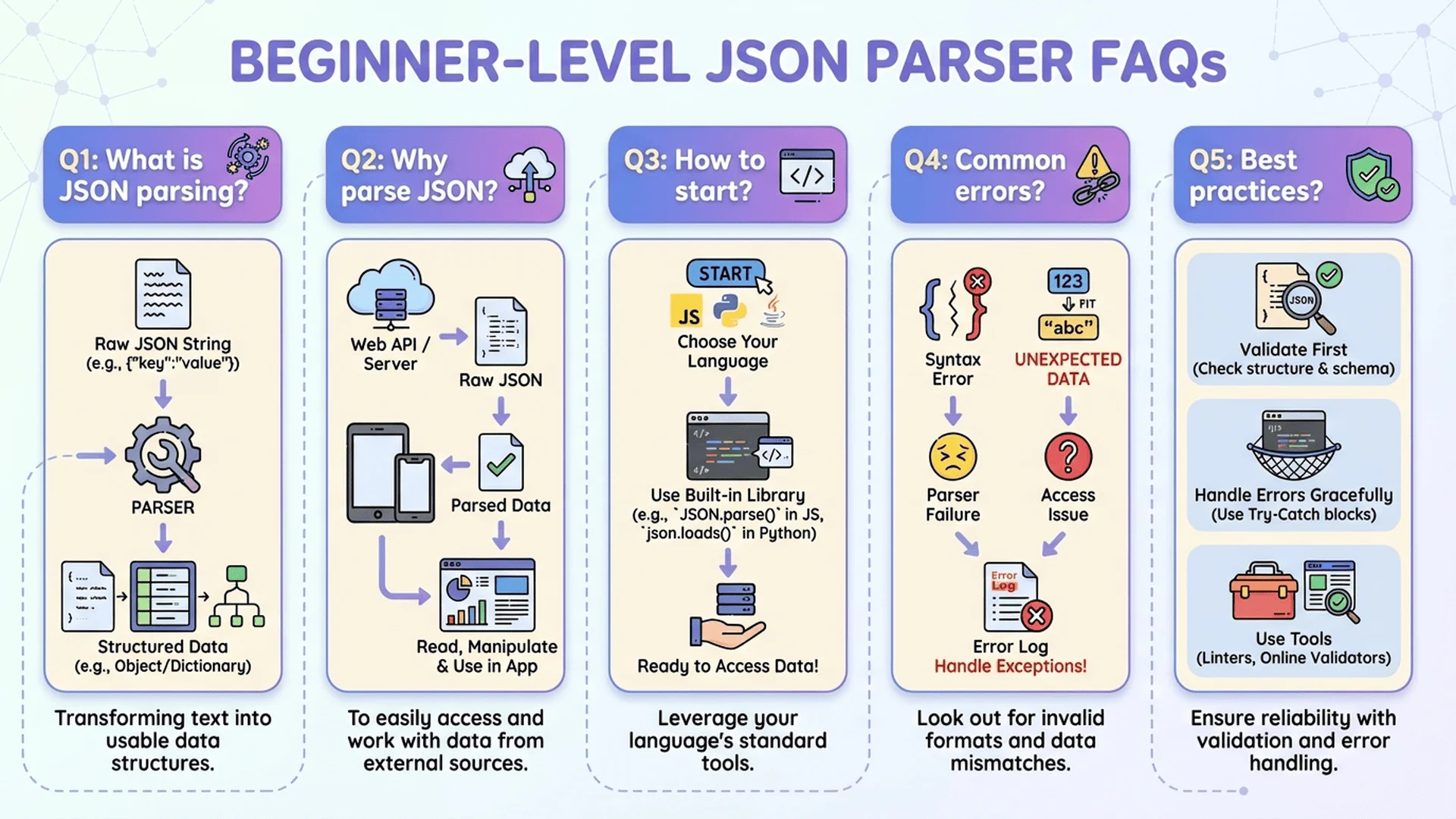
Basic Operations (Must-Read for Beginners)
Q1: What is a JSON Parser? Why do I need it?
JSON is the most widely used data format on the web.
But manual writing is error-prone: missing commas, wrong quotes, encoding issues.
A JSON parser automatically checks, fixes, and beautifies format.
Saves 90% of error-finding time.
Who needs it?
- Engineers: API testing, debugging
- Data analysts: Data processing, format conversion
- Learners: Understanding JSON structure
💡 Further Reading: Want to understand full functionality? Check out Complete JSON Parser Guide.
Q2: How do I use a JSON Parser?
Super simple, three steps:
Step 1: Paste JSON Code
- Copy JSON from API response, file, or anywhere
- Paste into parser's input box
Step 2: Click Function Button
- "Validate" → Check syntax errors
- "Format" → Beautify layout
- "Minify" → Compress to one line
- "Fix" → Auto-correct errors
Step 3: View Results
- See errors? Tool will mark location and suggest fixes
- Format successful? Copy results and use
💡 Try Now: Free JSON Parser, paste data and see results instantly.
Q3: What's the difference between JSON and JavaScript objects?
Many people confuse these two!
JSON (Data Format):
- Plain text format
- Keys must use double quotes
- Only supports limited data types (string, number, boolean, array, object, null)
- Cannot have functions, undefined, Date, etc.
JavaScript Object (Programming Language Data Structure):
- Object in memory
- Keys can be unquoted
- Supports all JavaScript data types
- Can contain functions
Simple Memory Aid:
JSON is "text for transmitting data," JavaScript objects are "data during program runtime."
Q4: Are online JSON tools safe? Will data be stored?
This is an important question! Security depends on how the tool processes data.
Two Processing Methods:
❌ Server Processing (Less Secure):
- Data uploaded to remote server for processing
- May be logged, stored, or leaked
- High risk for sensitive data
✅ Local Processing (Most Secure):
- Data processed in your browser
- Completely no upload to server
- Data not stored, not logged
Tool Master's Security Guarantee:
- JSON Parser 100% local processing
- Data not uploaded, not stored, not logged
- Safe even with API keys, passwords, and other sensitive info
How to verify if tool uses local processing?
1. Open browser developer tools (F12)
2. Switch to Network tab
3. When using tool, check for network requests
4. No requests = Local processing ✅
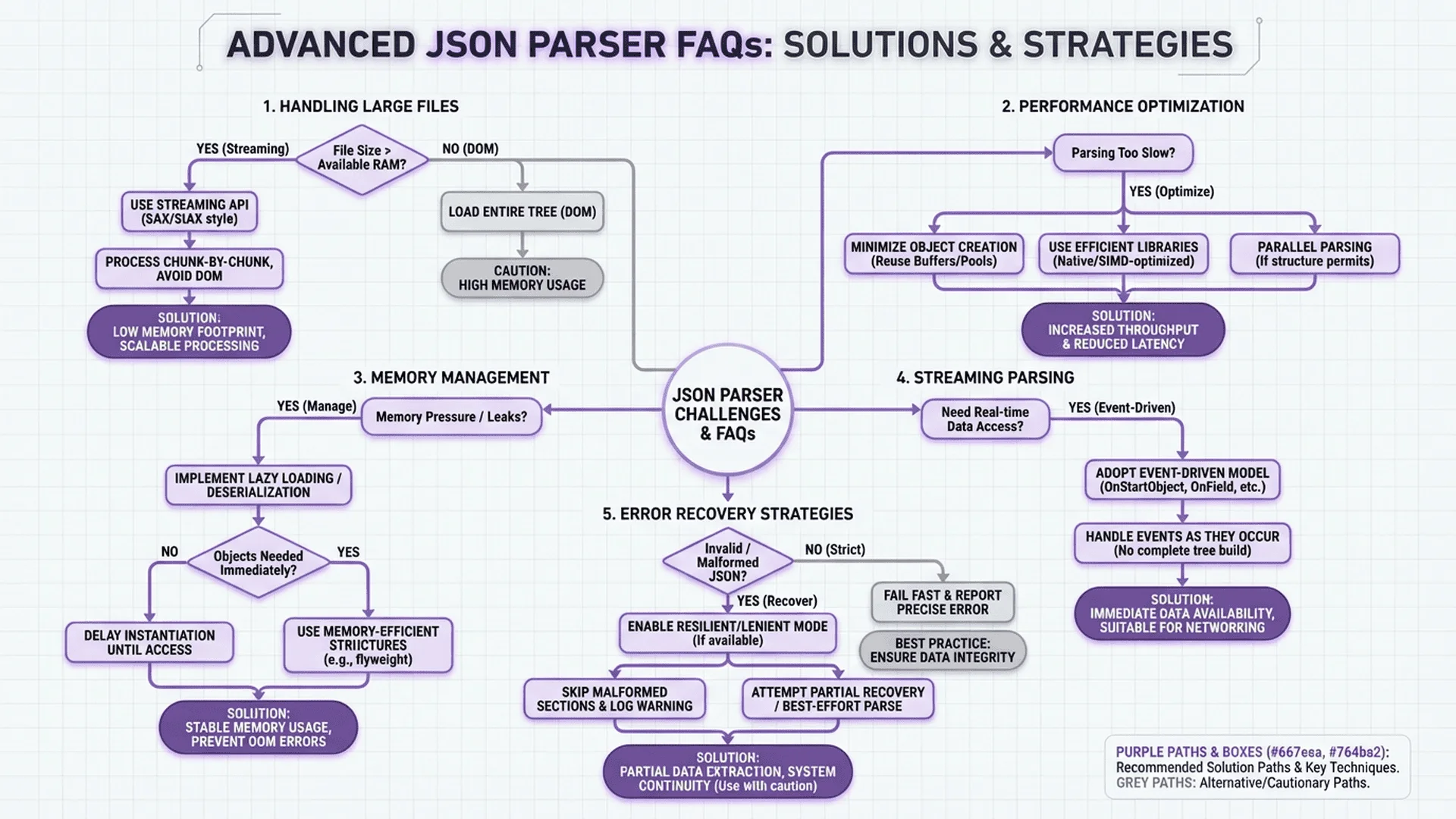
Troubleshooting Questions (Most Searched)
Q5: Why does my JSON keep throwing errors?
3 Most Common Reasons:
❌ Missing comma (Every element needs comma between them)
❌ Quote error (Only double quotes " allowed)
❌ Extra comma on last element (Last element cannot have comma)
Quick Solution:
Use JSON Parser for auto-fix.
Tool will mark error location and tell you how to fix.
💡 Further Reading: See Complete JSON Syntax Error Solutions, 30+ error examples with fixes.
Q6: What does "Unexpected token" mean?
This is the most common JSON error message!
Meaning: "Parser encountered an unexpected character"
Common Causes:
- Extra comma
{
  "name": "John",
  "age": 30,  ← This comma is extra
}
- Missing quotes
{
  name: "John"  ← name should be quoted
}
- Used single quotes
{
  'name': 'John'  ← Should use double quotes
}
Solution:
1. Look at line number in error message
2. Find that line
3. Check if commas, quotes, brackets are correct
Use JSON Parser, errors will be auto-marked and fixed.
💡 More error code explanations: See Complete JSON Troubleshooting Guide.
Q7: What to do about missing or extra commas?
Comma issues are JSON error's #1 culprit!
Rule is simple:
- ✅ Between every element need comma
- ❌ Last element don't need comma
Wrong Example:
{
  "name": "John"  ← Missing comma here
  "age": 30,      ← Last element shouldn't have comma
}
Correct Example:
{
  "name": "John",  ← Need comma here
  "age": 30        ← No comma at end
}
Quick Fix:
Don't want to fix manually? Use auto-fix feature to solve comma issues with one click.
Q8: What to do about quote errors? How to fix?
JSON is strict about quotes!
Only double quotes (") allowed, not single quotes (')
Common Error:
{
  'name': 'John',     ← Wrong: used single quotes
  "age": 30
}
Correct Format:
{
  "name": "John",     ← Correct: double quotes
  "age": 30
}
What if string contains quotes?
Use backslash to escape:
{
  "quote": "He said \"Hello\""
}
Auto-Fix:
JSON Parser automatically detects quote errors and provides fix suggestions.
Q9: How to fix Chinese characters becoming gibberish?
Chinese gibberish is usually an encoding issue.
Cause:
JSON file not saved with UTF-8 encoding.
Solutions:
Method 1: Choose UTF-8 when saving file
- Open JSON file with text editor
- Choose "UTF-8" encoding when saving as
- Reload file
Method 2: Specify encoding when processing code
# Python example
with open('data.json', 'r', encoding='utf-8') as f:
    data = json.load(f)
Method 3: Set correct Content-Type for API
Content-Type: application/json; charset=utf-8
Tool Master Parser Support:
- Auto-detect encoding
- Correctly display Chinese, Japanese, Korean, and other languages
- No manual configuration needed
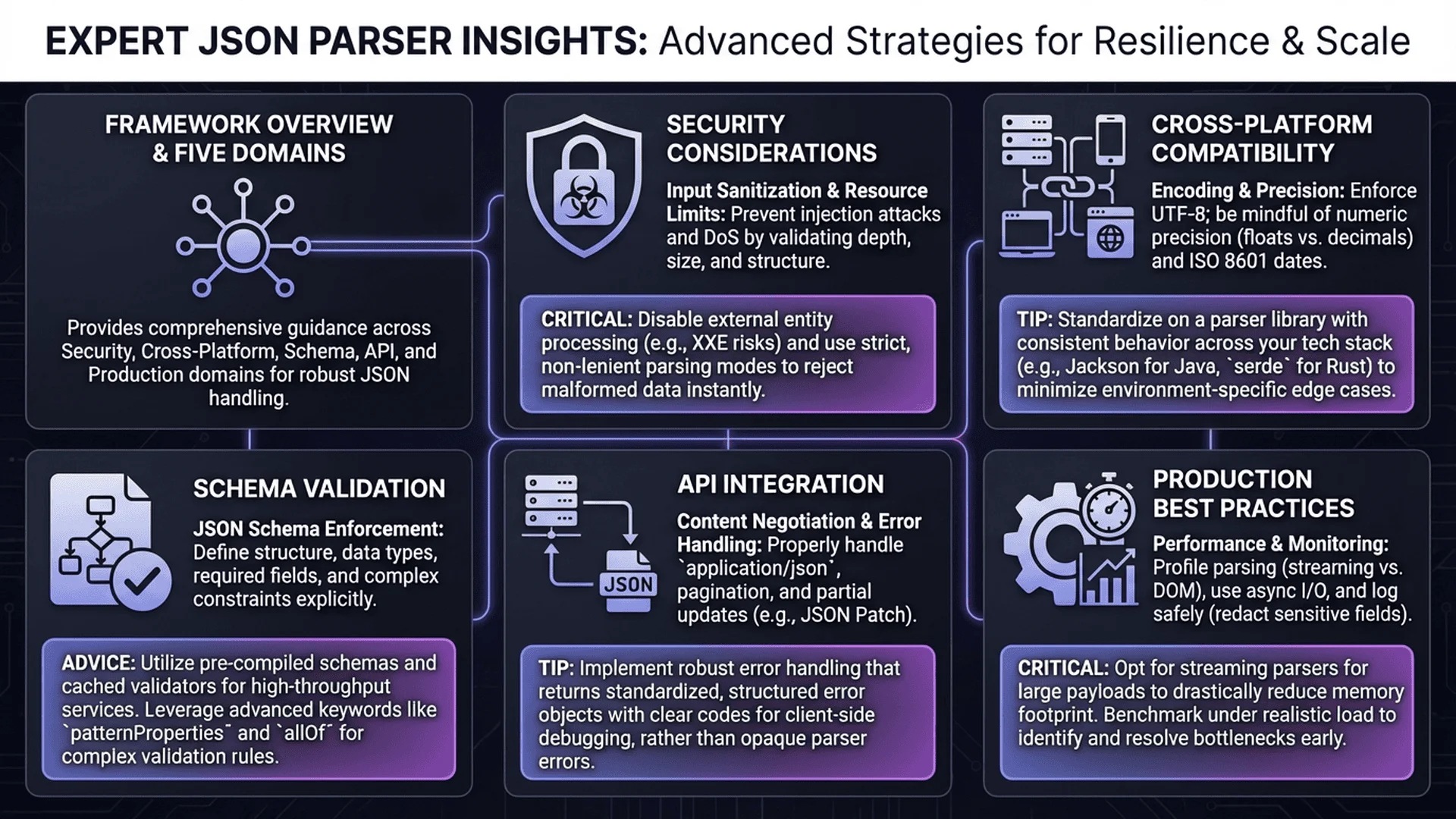
Advanced Usage Questions (Developer Zone)
Q10: How to handle very large JSON files (>5MB)?
Large files may slow down browser.
3 Solutions:
Method 1: Use Compression Mode
- First compress to one line
- Reduce memory usage
- Avoid browser freezing
Method 2: Process in Segments
- Split JSON into small chunks
- Validate chunk by chunk
- Fix errors incrementally
Method 3: Use Professional Tools
- Tool Master parser is optimized
- Supports files up to 10MB
- Fast, no lag
Files exceeding 10MB:
Recommend using programming languages (Python, Node.js):
import json

# Read large JSON line by line
with open('large.json', 'r') as f:
    for line in f:
        data = json.loads(line)
        # Process each piece of data
💡 Further Reading: Complete JSON Minifier Guide - Reduce large file size.
Q11: Can I batch process multiple JSON files?
Most online tools currently process one file at a time.
Batch Processing Suggestions:
Method 1: Process One by One
1. Validate first file, confirm format is correct
2. Use same format for other files
3. Validate one by one, fix one by one
Method 2: Write Automation Script
// Node.js batch validation example
const fs = require('fs');
const files = ['file1.json', 'file2.json', 'file3.json'];

files.forEach(file => {
  const data = fs.readFileSync(file, 'utf8');
  try {
    JSON.parse(data);
    console.log(`✅ ${file} format correct`);
  } catch (error) {
    console.log(`❌ ${file} has error: ${error.message}`);
  }
});
Method 3: Use Command-Line Tools
# Batch validate all JSON files
for file in *.json; do
  jq empty "$file" && echo "✅ $file" || echo "❌ $file"
done
Q12: How to validate JSON Schema?
JSON Schema is a more advanced validation method.
Not only checks syntax, but also validates whether data structure meets specifications.
What is JSON Schema?
"Rules" that define what JSON should look like.
Example Schema:
{
  "type": "object",
  "properties": {
    "name": { "type": "string" },
    "age": { "type": "number", "minimum": 0 }
  },
  "required": ["name", "age"]
}
This Schema specifies:
- Must be an object
- Must have name (string) and age (number)
- age cannot be negative
How to Validate?
Use tools that support Schema validation, or programming language packages:
// JavaScript example (ajv package)
const Ajv = require('ajv');
const ajv = new Ajv();

const schema = { /* Your Schema */ };
const data = { /* Your data */ };

const validate = ajv.compile(schema);
const valid = validate(data);

if (!valid) {
  console.log(validate.errors);
}
💡 Deep Learning: Complete JSON Schema Validation Tutorial.
Q13: Can formatted JSON be converted back to compressed format?
Of course! And it's very simple.
Why need two formats?
Formatted (Beautified):
- Easy to read, easy to maintain
- Suitable for development, debugging, code review
Compressed (Minified):
- Small file, fast loading
- Suitable for production, API responses
How to Convert?
Formatted → Compressed:
1. Paste formatted JSON
2. Click "Minify" button
3. Done! Becomes one line
Compressed → Formatted:
1. Paste compressed JSON
2. Click "Format" button
3. Done! Becomes clear hierarchical structure
Both formats can be converted anytime, use JSON Parser with one click.
Tool Selection Questions
Q14: What's the difference between free and paid JSON parsers?
Many people wonder about this!
Free Tools (like Tool Master):
✅ Complete core functions (format, validate, fix, compress)
✅ Local processing protects privacy
✅ No usage limit
✅ No registration required
Possible limitations:
- File size limit (usually 5-10MB)
- No custom features
Paid Tools:
✅ Support very large files (100MB+)
✅ Batch processing
✅ Custom Schema validation
✅ Technical support
Which should I choose?
Choose free tool if you:
- Files less than 10MB
- Basic validation, formatting needs
- Value privacy security
- Occasional use
Choose paid tool if you:
- Enterprise-level needs
- Process very large files
- Need batch automation
- Need technical support
Tool Master Recommendation:
Try free tools first. For most people, free tools are sufficient.
Q15: What are the features of Tool Master's JSON Parser?
Our JSON Parser is designed specifically for developers.
Core Features:
✅ 100% Local Processing
- Data not uploaded, not stored, not logged
- Safe even with sensitive information
✅ Completely Free
- No usage limit
- No registration, no login required
- No ad pop-up interference
✅ Full Functionality
- Real-time formatting and beautification
- Auto syntax error detection
- Smart error fixing
- Data compression and minification
✅ Bilingual Support
- Traditional Chinese + English
- Instant interface language switching
✅ Cross-Platform
- Works on mobile, tablet, desktop
- Responsive design, process data anytime, anywhere
✅ Fast Speed
- Supports files up to 10MB
- Optimized, no lag
✅ Professional Technical Documentation
- Complete implementation instructions
- Developers can reference for learning
Related Topics
Want to learn more about JSON?
📚 Recommended Reading
Basic Tutorials:
- Complete JSON Parser Guide - 7 Essential Tips from Beginner to Expert
- Complete Online JSON Validator Guide - 5 Steps to Quickly Detect Syntax Errors
Troubleshooting:
- Complete JSON Syntax Error Solutions - 30+ Error Examples with Fixes
Advanced Applications:
- JSON Schema Validation Practical Guide - Build Automated Data Validation Systems
- JSON API Testing Methods - 7 Steps to Ensure API Correctness
Formatting Techniques:
- JSON Formatter Best Practices - 6 Beautification Tips for Team Collaboration
- JSON Beautifier Usage Guide - Learn 5 Beautification Techniques in 3 Minutes
🔧 Explore More Developer Tools
Tool Master provides 3 professional developer tools, covering JSON parsing, color code conversion, Favicon generation, and more.
Summary
JSON parser is an essential tool for modern development.
From basic formatting to advanced Schema validation, it can help.
Next Steps
If you frequently need to process JSON data, we recommend:
- Bookmark JSON Parser for instant access
- Learn more advanced techniques to improve development efficiency
- Explore other developer tools, combine for greater efficiency
💡 Final Reminder
All Tool Master tools are completely free, with data processed locally in your browser—no privacy concerns.
No registration, no login required—just open and use.
If this FAQ helped you, feel free to bookmark Tool Master and share with friends who need it!
References
- JSON.org, Official JSON Specification
- MDN Web Docs, JavaScript JSON API Documentation
- Stack Overflow, JSON Common Question Statistics